Showing posts with label Javascript. Show all posts

Wednesday, 6 March 2024

A New Test For The Brave Browser and New Security Focused Browsers

How Can We Test For Brave?

By Strictly-Software

I use the Brave browser as well as a few other Chromium-based security-focused browsers such as (Opera, CCleaner, and DuckDuckGo) most of the time due to their inbuilt security measures. My preferred browser is Brave due not only to its Shield which removes trackers, cookies, adverts, and has a measure of built-in fingerprint spoofing. Plus it has its own search engine, which can be accessed from the address bar, and it doesn't block certain sites like Google and other search engines do.

It also blocks Google's Accelerated Mobile Pages and takes you to the original publisher's site, can have strict upgrades to HTTPS URLs when linked to an unsecured domain, as well as its incognito pages are based on the TOR engine.

I never use Chrome anymore as it used to be a quick plain browser but has now got bogged down with too many options. Also, I don't like Google which relies on heavy use of adverts and selling user information for revenue, plus its other links to intelligence agencies, and its censorship. This has pushed mainstream media articles ahead of legitimately more relevant sites. I also don't like it's use of banned reading lists that try to prevent people from viewing sites the US Intel Establishment has deemed unsuitable like RT.com or Infowars.com. 

Plus I don't know what they now do server side to try and identify users due to all these new privacy-based browsers, and the number of privacy plugins/extensions, that could help protect you. However, it's good to know you can have a measure of protection without bogging the browser down with plugins such as fingerprint spoofers like Trace and AdBlockers like MalwareBytes or the DuckDuckGo plugin. Also, I like being able to earn cryptocurrency from Brave which rewards the user, not the site for viewing small adverts.

However, the issue with Brave is that it hides as Chrome and doesn't have its own user agent. It used to, and the hope is that in the future it will again but at the moment it just shows a Chrome user-agent. 

For example, my latest Brave user-agent is:

Mozilla/5.0 (Windows NT 10.0; Win64; x64) AppleWebKit/537.36 (KHTML, like Gecko) Chrome/122.0.0.0 Safari/537.36

There have also been a lot of changes to how Brave identified itself in the Window and Navigator sub-object that used to make Brave identifiable through inspection of certain objects. These seem to have changed back and forth many times and you can see some of the old objects that used to be checked in my older article on looking for Brave here.

Why bother looking for Brave, or indeed any browser when feature detection should be used rather than user-agent sniffing or other means to find the name of the Browser?

Well, Brave prides itself on security, hiding adverts, removing tracking code and cookies, and now has a certain level of fingerprint sniffing protection to stop sites from using properties identified by JavaScript or Server Side code to change Response headers to make identifying unique users and traffic to sites much harder.

Therefore you may want to write Chromium extensions that add extra protection to Brave browsers or do the reverse, add code back in to replace removed adverts, or help track link clicks with removed Ping attributes or other devious plans your boss wants you to run on sites accessed by people using Brave. 

I don't know, I just like to play with the code and see what object detection features each browser reveals. They may all be based on Chromium but they can all have unique features.

An updated function from my previous article makes use of the fact that Brave now identifies itself in the window.navigator object, specifically the brave object in navigator and the isBrave property within that. 

First I rule out any Mozilla browsers e.g Firefox by looking for a well-known Mozilla property, and ensure the browser is Chromium based by checking for a Webkit property. It is similar to the two line old function but uses a new Webkit property as the old one has been removed and is wrapped in a function.

function IsBrave(){
	
	let w=window,n=w.navigator; // shorten key objects

	// as many tests we know browsers now support; prove its not Mozilla; prove its Chromium based and has Brave properties in window and navigator objects
	let isBrave = !("mozInnerScreenX" in w) && ("chrome" in w && "onwebkitanimationiteration" in w && "brave" in n && "isBrave" in n.brave) ? true : false;
	
	return isBrave;
}

And if you want to check for the new CCleaner browser there isn't any specific objects in the navigator object I can see but it does have a unique user-agent e.g:

Mozilla/5.0 (Windows NT 10.0; Win64; x64) AppleWebKit/537.36 (KHTML, like Gecko) Chrome/121.0.0.0 Safari/537.36 CCleaner/121.0.0.0

However, the Duckduckgo browser, which comes with an email protection service, allowing you to use a specific @duck.com email address that only forwards non-spam emails to your real address, does have a specific object if you want to check for it.

// detect duckduckgo
let duckduckgo = ("duckduckgo" in navigator) ? true : false;
However, we all should be detecting objects to allow for features rather than the old method of user-agent sniffing, but if you did want to identify certain browsers there are unique objects, usually on the navigator object that can be checked.

You should know that there are lots of ways you can protect yourself from tracking and unique identification nowadays but it does rely on the device you are using to browse as well as the model of that device.

For instance, even if you are now using IPv6 addresses on your router which makes unique identification a lot easier than the older DCHP method of picking a free IPv4 address as local to you as possible when accessing the web, your system can be set to use temporary IPv6 addresses.

This means that your real unique identifying IP address is never shown to outside sites. A look at ipconfig /all in your command prompt will show you whether you are using them or not and a search online will show you how to change the settings if you're not using them yet.

Also, if you are using Android or iOS phones or devices that use Google as an integral part of their system, you can delete the unique advertising ID that exists to allow sites to uniquely track you whether or not your browser or plugin removes Google tracking codes. 

On iOS the ad identifier is also called "IDFA" and on Android, "AAID". As these IDs can only be accessed using server-side code, Java or Python, and a Google library, modifying the DOM won't stop you from being tracked. 

You can easily remove these IDs in the Privacy / Advertising section of your phone's settings if you have Android 12 or above. iOS devices are more complicated but this article explains how to remove them.

If you want to check what properties exist for a browser object then these two lines of code can help you out rather than a loop.
const keys = Object.keys(window);
console.log(keys);

This just outputs all the keys such as events, other objects like document and navigator, and properties as well into the developer tools console area that all modern browsers have.

Remember as Brave, CCleaner, DuckDuckgo, Edge, Opera and Chrome are all based on the same Chromium browser they are the same standard-compliant browsers. However, as I stated in my last article, it is amazing how many modern sites still break when I use a user-agent switcher and change my string to IE6 for example. 

They really shouldn't if they were using feature detection by checking for the existence of objects before running certain code.

By Strictly-Software

Sunday, 30 October 2022

What do you do when you have multiple blogs under one Google Blogger Account?

Changing The Names Of Replies And Posts

By Strictly-Software

If you are a blogger user and you have multiple blogs each with different names then you might run into the problem that when you post, or reply to a message using your Google account it will put your main Blogger account name in as the author, or comment author.

Now the way I have got round this is to use JavaScript in the footer of the blog. Add a JavaScript / HTML gadget to the footer of your blog and then you can fix this issue.

I will show you two ways you can fix this using old JavaScript and newer JavaScript .

To fix the name of post authors you can use this code. Say your blogger author name is Dave Williams but you are using pseudo names for your blog, say "Strictly-Software" for example then you don't want Dave Williams posted at the end of each post, you want Strictly-Software to appear.

Wrap these in SCRIPT blocks, whether a short <script>....</script> block or a full old style <script type="text/javascript"><!-- ..... //--></script> tags. Up to you.

This looks for all the spans with a class of "fn" which appears under the post where it says "Posted by ..... at 9:58pm" etc. So we loop through all the fn classes and change the innerHTML to the value we want.
 
(function(){
var x = document.getElementsByClassName("fn");
var i;
for (i = 0; i < x.length; i++) {
    x[i].innerHTML = "Strictly-Software";
}
})()

Now what about comments? 

If you are replying to someone and you don't want to use the Name/URL option to put your blogs name in, then you can use the Google option so it knows you own the comment, but then you can use some code to identify the links which contain the Google Authors name and if found update them to the name you want.

Same as before with the SCRIPT tags, although I put both together one after the other in one script block at the bottom of my layout.

Now, this code uses a more modern document.querySelectorAll method to find all elements that match the selector we pass in which will be an anchor tag. This is because all comments have the name of the person commenting wrapped in a comment tag IF you use a Google Account to post it. 

Obviously, Anonymous and Name/URL comments can't as there is nowhere to link to.

(function(){
	var x = document.querySelectorAll("a");
	var i;
	for (i = 0; i < x.length; i++) {		
		if(x[i].innerHTML=="Dave Williams"){
			x[i].innerHTML="Strictly-Software"
		}		
	}
})();

As you can see I am looping through all the elements that the querySelectorAll("a"); returns. 

If we had used just querySelector it would have only found the first A tag on the page and we need to find and replace all comments on the page which have Dave Williams as the current contents and if found, we replace it with Strictly-Software by using the innerHTML of the element.

I just thought I would post this as I had to do this tonight on one of my other blogs as I noticed the comment author was wrong. You could use the 2nd method for getting the author name as well if you wanted but I thought I would show you two ways of doing this.

Hope this helps if you have the same issue.

By Strictly-Software

Wednesday, 16 February 2022

Blogger EU Cookie Message Missing Problem & Solution

My EU Cookie Message Disappeared From My Site - How To Get It Back

By Strictly-Software

I had a bit of a weird experience recently, I found out, only from Google informing me, that for some reason one of my Blogger sites was not showing the EU Cookie Notice that should appear on all Blogger sites if in a European country where "Consent to use Cookies", is required by all website users.

It used to show, and my other blogger sites were still working and in fact, on my own PC, it was still showing the correct message e.g:

"This site uses cookies from Google to deliver its services and to analyse traffic. Your IP address and user agent are shared with Google, together with performance and security metrics, to ensure quality of service, generate usage statistics and to detect and address abuse."

However, when I viewed the site Google had told me about on another PC this was not appearing for some reason. 

I cleared all the cookies, path, domain, and session using the Web Extension called "Web Developer Toolbar", such as this Chrome version. After installing it, a grey cog appears in your toolbar if you fix it to. 

It is really helpful for turning password fields into text, if you want to see what you are typing, or need to see a Browser stored password in the field, or as needed in this instance, for deleting all kinds of Cookies. So after deleting all the Cookies, I refreshed the page and but the EU Cookie Message still didn't show.

Fixing Blogger Cookie Notice Not Showing

If you view the source of a blogger site that is showing the EU Cookie message, then you should find the following code in your source, not generated source, but the standard "View Source" options when you right-click on the page and view the context menu.

The following code should be just above the footer where all your widget scripts are loaded. Notice that I put some HTML comments above my version of the code so I could easily identify it from Bloggers version in the DOM when viewing the source. Why do this if Bloggers code is not in the source anyway? Wait and see.

<!-- this is my code as bloggers only appear in the source sometimes -->
<script defer='' src='/js/cookienotice.js'></script>
<script>
 document.addEventListener('DOMContentLoaded', function(event) {
      window.cookieChoices && cookieChoices.showCookieConsentBar && cookieChoices.showCookieConsentBar(
          (window.cookieOptions && cookieOptions.msg) || 'This site uses cookies from Google to deliver its services and to analyse traffic. Your IP address and user agent are shared with Google, together with performance and security metrics, to ensure quality of service, generate usage statistics and to detect and address abuse.',
          (window.cookieOptions && cookieOptions.close) || 'Ok',
          (window.cookieOptions && cookieOptions.learn) || 'Learn more',
          (window.cookieOptions && cookieOptions.link) || 'https://www.blogger.com/go/blogspot-cookies');
});
</script> 

So to fix the issue, copy the code out of the page and then go to your layout tool in Blogger. Add a widget at the bottom if no JavaScript/Text widget already exists and copy the code into it.

Now the odd thing is that as soon as I saved the widget and then my blogger site. I went to the website having issues and viewed the source code. When I did I saw that not only was my version of the code was in the HTML, but somehow this had put Bloggers own version back into the HTML as well!

Why this would do that I have no idea. However, it meant that I now had two lots of the same script being loaded and 2 lots of the EU Cookie code that shows the DIV and the options for wording appearing in my HTML.

The good thing though, is that this did not cause a problem for my site. I found by adding that code into a widget at the bottom of my page above Bloggers magically re-appearing code, that it did NOT cause the message to appear twice, but also that when I removed my own version of the code, the Blogger version remained.

Also even though I have put in a version of the Blogger code that uses English sentences into the HTML when I use a Proxy or VPN to visit a European country such as Germany, the wording appears in German.

I suspect that my code runs first as it's first in the DOM, then the Google code runs, overwriting my DIV with their DIV and of course the correct wording for the country we are in.

So as I thought everything was working, I removed my own code and saved the site. I then went to it, deleted path, domain, and session cookies, and then refreshed the page again and saw the blogger cookie code running okay. When viewing the source I could see that my code had gone but the blogger code was now still in the HTML, whereas it wasn't before.

However......

After a few hours when I came back to the computer which had not been showing the message and I re-checked by clearing all cookies (path, domain and session), and saw that Bloggers code had disappeared again, and the message was now not showing again!

Why this has happened I do not know as I had not re-saved the Blogger site in question during the time away so I have no idea what caused the Blogger EU Code to disappear again. 

There really should be an option in settings to force the Cookie compliance code to be inserted but as there isn't the answer seems to be to just leave your version of the cookie code in the HTML source in a widget at the bottom of the layout.

Why this works without causing issues I have no idea and it sounds like a bodge which it is, but as I cannot find any real answers to this problem online, or in Googles KB, I had to come up with a solution that worked to comply with Google's request and this seems to do it.

So the fact that when you have two lots of the same code in your HTML does NOT cause the message to appear twice is a good thing. This means that even if the original code re-appears then you are okay, and if it doesn't then your own code, which is a direct copy of the blogger code, runs instead. 

Also as your code runs first, if it is causing Bloggers code to also re-appear in the HTML then that will run afterwards ensuring the correct European language is shown in the message.

You can view the JavaScript which is loaded in by Blogger by just appending /js/cookienotice.js to any blogger site e.g this one, http://blog.strictly-software.com/js/cookienotice.js. You can then see the functions and HTML they use to show the DIV. You can also see at the top the ID's and Classes they put on the Cookie Message DIV.

So if you want to check which version of the EU Cookie code is running when both sets of JavaScript exist, you could add a bit of code underneath that checks for the Cookie DIV on display, and add some CSS to target cookieChoicesInfo, which is the ID of the DIV that is shown and you could change the background colour of the DIV to see if it is your DIV or Bloggers DIV that appears.

For example, you could put this under your JavaScript code to change the background colour of the DIV with the following code.

<style>
#cookieChoiceInfo{
	background-color: green !important;
}
</style>

Obviously green is a horrible colour for a background, but it easily stands out. When I did this I saw a Green DIV appear with the message in the correct language displayed, despite my EU options having English as the language for all the wording. 

This is because our code to load the script, and the cookie options into the page runs first, before any Blogger code that appears lower down in the HTML / DOM. When that Blogger code does run, it overwrites the DIV and the wording in the correct European language.

If you right-click on the DIV and choose "inspect" then the Developer Console will appear and you will be able to see that your style to change the background colour is being used on the Cookie message DIV. 

As it's a CSS style block with !important after the style, when the Blogger code overwrites the DIV and wording, the style for the background colour of the DIV is still being determined by our CSS Style block.

So the answer if your EU Cookie Compliance Message disappears is to add your own copy of their code into the site through a widget. 

This shouldn't cause any problems due to any duplicate DIV overwriting your DIV and if it disappears again then at least your version remains.

I just don't understand two things.

1. Why did the Cookie code disappear in the first place?

2. Why did the Blogger code re-appear when I added my own version of Bloggers own EU Cookie message code into the HTML and then why did it dissapear again a couple of hours? 

If anyone can answer these questions then please let me know. A search inside Googles Adsense site does not reveal any useful answers at all.

People just suggest adding query strings to your URL to force it to appear which is no good if your site is linked to from various Search Engines and other sites. Or to just delete all the cookies and refresh the page. 

These are two useless suggestions, and the only thing that seems to work for me is the solution I came up with above. So if you have the same problem try this solution.


By Strictly-Software

Thursday, 3 February 2022

Testing For The Brave Browser

How Can We Test For Brave?


By Strictly-Software

The problem with detecting the Brave browser which I use most of the time is that it hides as Chrome and doesn't have its own user agent. It used to, and the hope is that in the future it will again but at the moment it just shows a Chrome user-agent. 

For example, my latest Brave user-agent is:

Mozilla/5.0 (Windows NT 10.0; Win64; x64) AppleWebKit/537.36 (KHTML, like Gecko) Chrome/97.0.4692.99 Safari/537.36

It also apparently used to have a property on the windows object window.Brave which is no longer there anymore. I have read many articles on StackOverflow about detecting Brave and all the various methods that apparently used to work don't anymore due to objects and properties such as window.google and window.googletag no longer exists on the windows object.

As these posts were not written that long ago it seems that there have been a lot of changes on the window object by Chrome / Google / Brave etc. So when writing your own function as I did it is worth outputting all the keys on the window object first to see what is there and what isn't e.g.

const keys = Object.keys(window);
console.log(keys);

This just outputs all the keys such as events, other objects like document and navigator, and properties as well into the developer tools console area that all modern browsers have.

As Brave, Edge, Opera and Chrome are all based on the same Chromium browser they are basically the same standard-compliant browsers.

Remember we should always use feature detection rather than user-agent parsing to choose whether or not to do something in JavaScript but it is amazing when using a user-agent switcher how many modern-day sites break when I change a standards-compliant browsers agent string to IE 6 for example.

If the coder wrote their code properly it wouldn't matter if I changed the latest version of Chromes user-agent to IE 6 or even IE 4 or Netscape Navigator 4, all sites should work perfectly as instead of doing old school tests like

isIe = document.all;
isNet = document.layers;

And then branching off those two as we did in the old days of scripting which led to browsers like Opera which no one catered for, having to support both IE and Netscape event handlers and pretending to not exist. However, they did eventually add the Opera property to the window object so if you really wanted to find it you could just test for:

if(window.opera){
  alert("This is Opera");
}

However, this no longer exists and Opera uses the same WebKit Chromium base as all the other modern browsers apart from Firefox.

Also, remember that the issue with JavaScript is that every object can be overwritten or modified, that is why we have user-agent switchers in the first place because they can, and do overwrite and change the window.navigator object.

Therefore if you are really pedantic there is NO real way to test if anything is real in JavaScript as a plugin or injected script could have added properties to the Window object such as changing the user-agent or adding a property another browser uses to the window so that tests for window.chrome fail in FireFox because you have created a window.chrome property FireFox detects.

There are loads of ifs and buts and we can discuss the best approach all day due to injected code and extensions overwriting objects or accidental setting of objects by forgetting to do == and accidentally setting a variable or object with a single = by mistake, but let's answer the question,

I have read a lot about people trying to detect Brave and a lot of old objects on the Chrome browser like window.google and window.googletag that no longer exist or even window.Brave which apparently existed on the window object at one stage. 

Why might you want to even detect Brave if it is a standards-compliant Browser and you are doing feature detection and not user-agent sniffing anyway you might ask? 

Well good question, if you are writing your code properly you shouldn't ever need to know what Browser the code is running in as it will work whatever the user is running your web page in due to proper use of feature detection. 

However, you may have a site that wants to direct people to the right extension depository or download the correct add-on. Therefore to make the user comfortable in their decision you might want to show that you know what browser the user has so that they are happy downloading the add-on. 

Or there might be a myriad of other reasons such as asking users to update their browser due to an exploit that has been discovered or to ask old people still using IE6 to upgrade to a modern browser. Also if you want them to use one that removes cookies, trackers, and adverts, and is security conscious, you may want to direct non-Brave users to the Brave download page.

Therefore the function I have come up with tries to future proof by hoping Brave does put its name into the user-agent at some point, and it checks for the existence of properties in objects such as the window or navigator object.

You can put all your complaints and ideas for improving this function for detecting Brave in the comments section and maybe we can come up with a better solution.

// pass or don't pass in a user-agent if none is passed in it will get the current navigator agent
function IsBrave(ua){
	
	var isBrave = false;
	ua = (ua === null || ua === undefined) ? ua = window.navigator.userAgent : ua;

	ua = ua.toLowerCase();

	// make sure it's not Mozilla
	if("mozInnerScreenX" in window){		
		return isBrave;
	}else{
		// everything in JavaScript is over writable we could do this to pass the next test 
		// but then where would we stop as every object even window/navigator can be overwritten or changed...?
		// window.chrome="mozilla";
		// window.webkitStorageInfo = "mozilla";

		// make sure its chrome and webkit
		if("chrome" in window && "webkitStorageInfo" in window){
			// it looks like Chrome and has webkit
			if("brave" in navigator && "isBrave" in navigator.brave){
				isBrave = true;
			// test for Brave another way the way the framwwork Prototype checks for it
			}else if(Object.prototype.toString.call(navigator.brave) == '[object Brave]'){
				isBrave = true;			
			// have they put brave back in window object like they used to
			}else if("Brave" in window){
				isBrave = true;			
			// hope one day they put brave into the user-agent
			}else if(ua.indexOf("brave") > -1){
				isBrave = true;
			// make sure there is no mention of Opera or Edge in UA
			}else if(/chrome|crios/.test(ua) && /edge?|opera|opr\//.test(ua) && !navigator.brave){
				isBrave = false;			
			}
		}

		return isBrave;
	}
}

Of course if you really didn't want all these fallback tests and hope that Brave will sort their own user-agent out in the future or re-add a property to the window object as they apparently used to then you could just do something like this:
var w=window,n=w.navigator; // shorten key objects
let isBrave = !("mozInnerScreenX" in w) && ("chrome" in w && "webkitStorageInfo" in w && "brave" in n && "isBrave" in n.brave) ? true : false;

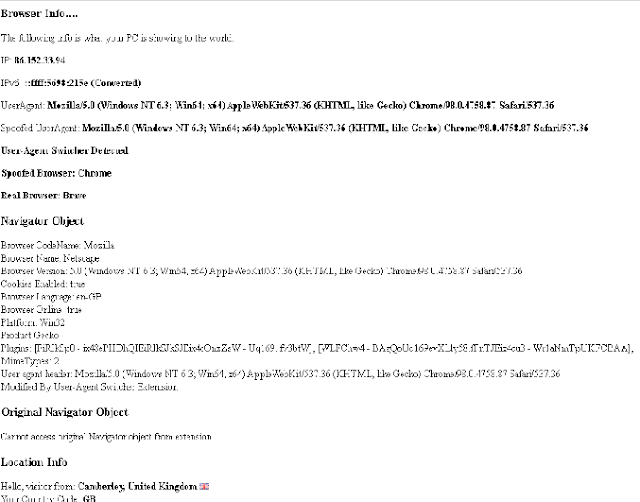
Just to show you that it works here is the "Browser" test page I keep on all my Browser's bookmark bars, written using just JavaScript with some AJAX calls and my own functions which lets me see the following info:
  • My Current IPv4 address by calling a URL that only returns IPv4.
  • My Current IPv6 address by calling a URL that will return one if I am using one, otherwise it converts the IPv4 into an IPv6 address format. Obviously, this is not my real IPv6 address as if I had one it would be returned it is just the IPv4 address converted into IPv6 format.
  • The UserAgent that the browser is showing me, this may be spoofed if a user-agent switcher is being used.
  • The real User-Agent if a spoofed user-agent is being used by a user-agent switcher extension/add-on.
  • The spoofed Browser Name.
  • The real Browser name.
  • Whether a user-agent switcher was detected. I have my own which does both the Request Header as well as overwriting the window.navigator object with different agents details. It creates a copy of the original navigator object so I can output it as well as the spoofed version.
  • An output of the current window.navigator object, if a user-agent switcher was used it will show the overwritten navigator object.
  • An output of the original window.navigator object if my own user-agent switcher was used then I create a copy of the same navigator string displayed for the current navigator object so both the spoofed and real navigator objects are outputted.
  • A script that loads in info about my location based on my IP address e.g: Town, County, Country, ISP, Hostname, Longitude, and Latitude.

Example Browser Test Output

If you look at this image, double click to open bigger if you need to, although it won't show you all the ISP & Location info at the bottom, it will show you the user-agents, both spoofed and real, as well as the spoofed browser and the real browser, which my custom function detects from either just a user-agent string or with the IsBrave() function I outputted above.


You can see here that although the user-agent strings are exactly the same my code that detects the browser has correctly recognised the real browser as Brave by using the function this article is about and for the spoofed Browser name it shows Chrome, which is the browser Brave tries to mask itself as.

This handy little script is on all my browsers bookmark bars for easy access and I find it very helpful for quickly seeing if a user-agent switcher is enabled and what if any, my browser it is pretending to be, as well as my current GEO-IP location in case I am using a global VPN, TOR, Opera or a proxy.

Let me know what you think of this function tested in Firefox, Chrome, Opera, Edge and of course Brave.

By Strictly-Software


Monday, 17 January 2022

Running JavaScript Before Any Other Scripts On A Page

Injecting A Script At The Top Of Your HTML Page


By Strictly-Software

If you are developing an extension for either Firefox, Opera or Chrome, Brave, Edge, and Chromium, then you might come across the need to be able to inject some code into the top of your HTML page so that it runs before any other code.

When developing extensions for Chromium based browsers such as Chrome, Brave and Edge, you will most likely do this from your content.js file which is one of the main files that holds code to be run at certain stages of a pages lifetime.

As the Chrome Knowledge Base says the property values for the "run_at" property include;

  • document_idle, the preferred setting where scripts are guaranteed to run after the DOM is complete and after the window.onload event has loaded all resources which can include other scripts.
  • document_end, content.js scripts are injected immediately after the DOM is complete, but before subresources like images and frames have loaded. So after the DOM is loaded but before window.onload has finished loading external resources.
  • document_start, ensures scripts are injected after any CSS files are loaded but before any other DOM is constructed or any other script is run.  
  • There is of course the "run_at" property in the manifest.json file, which can be set to "document_start", to enable the codes running before other code does. This is especially useful if you need to change header values before a web page loads so that modified values such as the Referer or User-Agent can be modified. However, there may also be a need for you to set up an object or variable that is inserted into the DOM for code within the HTML page to access.

    For example in a User-Agent switcher where you need to both overwrite the Navigator object in JavaScript and the Request header, you may want to create an object or variable that holds the original REAL navigator object or its user-agent so that any page you may create yourself or offer to your users the ability to see the REAL user-agent, browser, language, and other properties if they wanted to.

    For example, I have my own page that I use to show me the current user-agent and list the navigator properties. 

    However, if they have been modified by my own user-agent switcher extension I also offer up a variable holding the original REAL user-agent so that it can be shown and compared with the spoofed version to see what has changed. I also have a variable that holds the original navigator object in case I want to look at the properties.

    Therefore my HTML page may want to inspect this object if it exists with some code on the page.

    // check to see if I can access the original Navigator object and the user agent string
    if(typeof(origNavigator) !== 'undefined' && origUserAgent !== null)
    {
    	// get the real Browser name with my Detect Browser function using the original Navigator user-agent
    	let realBrowser = Browser.DetectBrowser(origUserAgent);
    
    	// output on the page in a DIV I have
    	G("#RealBrowser").innerHTML = "<b>Real Browser: " + realBrowser "</b>";
    }

    This code just uses a generic Browser detection function for taking a user-agent and finding the Browser name. It even detects Brave by ruling out other browsers and if it is Chrome at the end I check for the Brave properties or mention of the word in the string, which they used to have but newer versions have removed it. 

    However there is hope in the community that they will create a unique user-agent with the word Brave in as at the moment people are having to do object detection which is the better method, and as Brave tries to hide, there are plenty of query strings and other API calls which can be made to find out whether the result indicates Brave rather than Chrome.

    However, at the moment, I am just using a simple detection on the window.navigator object that if TRUE indicates that it is actually Brave NOT Chrome. 

    A later article shows a longer function I developed with fallbacks in case the objects do not exist anymore as there used to be a brave object on the window e.g window.brave that no longer exists, so did many objects for Chrome such as window.google and window.googletag that no longer exist. However, this article explains all that.

    This is just the one line test you can do, it ensures it is not FireFox with a test for a Mozilla only object window.mozInnerScreenX and then checks that it is a Chromium browser with tests for window.chrome and that it's also webkit with a test for window.webkitStorageInfo before some tests for navigator.brave and navigator.brave.isBrave to ensure it's Brave not Chrome e.g:

    // ensure that a Chrome user-agent is not actually Brave by checking some properties that seem to work to identify the browser at the moment anyway...
    let isBrave = !("mozInnerScreenX" in window) && ("chrome" in window && "webkitStorageInfo" in window && "brave" in navigator && "isBrave" in navigator.brave) ? true : false


    However, this article is more about injecting a script into the HEAD of your HTML so that code on the page can access any properties within it.

    As my extension offers an Original Navigator object and a string holding the original/real user-agent before I overwrite it, then I want this code to be the first piece of JavaScript on the page.

    This doesn't have to be limited to extensions and you may have code you want to inject in the HEAD when the DOMLoads before any other code.

    This is a function I wrote that attempts to place a string holding your JavaScript into a new Script block I create on the fly and then insert before any other SCRIPT in the document.head.

    However, if the page is malformed, or has no defined head area it falls back to just appending the script to the document.documentElement object.

    If you pass false in for the 2nd parameter which tells the function whether or not to remove the script after inserting it then if you view the generated source code for the page you will see the injected script code in the DOM.

    The code looks within the HEAD for another script block and if found it inserts it before the first one using insertBefore() however if there is NO script block in the HEAD then the function will just insert the script into the HEAD anyway using the appendChild() method.

    An example of the function in action with a simple bit of JavaScript that stores the original navigator object and user-agent is below. You might find multiple uses for such code in your own work.

    // store the JavaScript in a string
    var code = 'var origNavigator = window.navigator; var origUserAgent = origNavigator.userAgent;";
    
    // now call my function that will append the script in the head before any other and then remove it if required. For testing you may want to not remove it so you can view it in the generated DOM.
    appendScript(code,true);
    
    // function to append a script first in the DOM in the HEAD, with a true/false parameter that determines whether to remove it after sppending it.
    function appendScript(s,r=true){
    
    	// build script element up
    	var script = document.createElement('script');
    	script.type = 'text/javascript';
    	script.textContent = s;
    	
    	// we want our script to run 1st incase the page contains another script e.g we want our code that stores the orig navigator to run before we overwrite it
    
    	// check page has a head as it might be old badly written HTML
    	if(typeof(document.head) !== 'undefined' && document.head !== null)
    	{	
    		// get a reference to the document.head and also to any first script in the head
    		let head = document.head;
    		let scriptone = document.head.getElementsByTagName('script')[0];
    
    		// if a script exists then insert it before 1st one so we dont have code referencing navigator before we can overwrite it		
    		if(typeof(scriptone) !== 'undefined' && scriptone !== null){	
    			// add our script before the first script
    			head.insertBefore(script, scriptone);
    		// if no script exists then we insert it at the end of the head
    		}else{
    			// no script so just append to the HEAD object
    			document.head.appendChild(script);
    		}
    	// no HEAD so fall back to appending the code to the document.documentElement
    	}else{
    		// fallback for old HTML just append at end of document and hope no navigator reference is made before this runs
    		document.documentElement.appendChild(script);
    	}
    	// do we remove the script from the DOM
    	if(r){
    		// if so remove the script from the DOM
    		script.remove();
    	}
    }


    I find this function very useful for both writing extensions and also when I need to inject code on the fly and ensure it runs before any other scripts by using a onDOMLoad method.

    Let me know of any uses you find for it.

    Useful Resource: Content Scripts for Chrome Extension Development. 


    By Strictly-Software

    Friday, 7 January 2022

    Make Your First "Hello World" Brave / Chrome / Edge Extension

    Making your 1st Chrome / Brave Extension....

    By Strictly-Software

    This article is about how to go ahead and make your first extension for  Brave, Chrome, or Edge. As I no longer use Chrome but use Brave instead which like Microsoft Edge is based on the core Chromium Open Source standards-compliant browser, any mention of Brave in this article can be applied to Chrome or Edge as well.

    The good thing about choosing to write your first extension for a Chromium-based browser is that once you have done it, it can be applied to 3 major browsers, Chrome, Brave, and Microsoft's replacement for Internet Explorer, Edge. So if you want to maximize your efforts choosing to develop an extension for Chromium gives you much more scope to apply it to other major browsers unlike Mozilla for Firefox. 

    Not only do I like Brave for paying me not any site owner, to watch adverts in cryptocurrency (BAT), it is more secure, with an easy way to allow or prevent tracking cookies, 3rd party cookies, scripts, adverts, popups, and more from following you around the web.

    It does this by stripping out all the tracking codes by default before rendering the page.

    By doing this it also saves bandwidth and therefore time. It also uses TOR as it's an incognito window so you are more secure when trying to avoid people by going through the onion to access many pages that Brave will sometimes automatically redirect you to.

    You can download the Brave Browser from this link and start to strip trackers and earn cryptocurrency for ignoring tiny little adverts that are shown to you in the corner of the screen right now.


    Setting Up Your Extension

    1. Create a folder somewhere on your machine where all the files for the extension will be located. I just created a folder in documents called "Extensions" and then within it for this test a "HelloWorld" sub folder.

    2. Create a manifest.json file with basic info about your extension. The manifest.json file tells Chrome important information about your extension, like its name and which permissions it needs.

    The manifest version should always be 2, because version 1 is unsupported as of January 2014. So far our extension does absolutely nothing, but let’s load it into Chrome / Brave anyway.

    Let's add some info into it which describes the extension.

    {
      "manifest_version": 2,
      "description": "Hello World Extension",
      "name": "Strictly-Software Hello World Extension",
      "version": "0.1.1"
    }

    3. Create a content script which is "a JavaScript file that runs in the context of web pages." This means that a content script can interact with web pages that the browser visits.

    So open a text file and make the script, as we are doing a hello world all we need to do is something simple such as showing an alert box whenever we go to a new URL that shows a message e.g:

    
    // content.js
    alert("Hello from Strictly-Softwares Brave/Chrome extension!");
    

    Save the file in the same folder as all of your other files as content.js. 

    As we want the alert box to show on every URL we access we need to add a bit of script in the manifest file which tells it to act on <all_urls> you can see this in the below example as we also tell the manifest.json file about our JavaScript that needs to run on all the URLS we access.

    {
      "manifest_version": 2,
      "description": "Hello World Extension",
      "name": "Strictly-Software Hello World Extension",
      "version": "0.1.2022"
      "content_scripts": [
        {
          "matches": [
            "<all_urls>"
          ],
          "js": ["content.js"]
        }
      ]
    }

    If we wanted the extension code to only run on certain pages then we can use regular expression like syntax which you can explore later to define the URLS that our code acts on.

    Also if we were loading multiple JS files into our manifest file, we would use commas within the square brackets to denote them e.g to add jQuery go and get the version of the plugin you want e.g from https://ajax.googleapis.com/ajax/libs/jquery/3.3.1/jquery.min.js and save a local copy into your extension folder. 

    There is no point loading it from a remote site each time as it takes time to load, plus they have stopped using the "latest" version in their filename which you used to be able to reference to get the most up to date version from Google's or jQuery's CDN, however they stopped it due to the amount of requests they were getting which was almost on an unintentional DOS scale.

    For framework files you should always get a version that you know works, and save it locally or on a CDN, so that it can be cached and not loaded from a remote site each time. Also there is no need to keep updating it to the next version when one comes out. If it works for the project you are working on then leave the script reference alone. 

    This is something many developers didn't understand by always loading in the latest version remotely, this took network calls, time to load, and it often introduced new bugs into their code. It is far better to store all your code locally so it can be cached and so that you know it works. So to add jQuery into the extension we would do this.

    "js": ["jquery-3.3.1.js", "content.js"]

    The manifest would look like this if you did add extra files in e.g:

    {
      "manifest_version": 2,
      "description": "Hello World Extension",
      "name": "Strictly-Software UserAgent Extension",
      "version": "0.1.2022",
      "content_scripts": [
        {
          "matches": [
            "<all_urls>"
          ],
          "js": ["jquery-3.3.1.js", "lightbox.js", "scripts.js", "content.js"]
        }
      ]
    }

    4. Add a logo for your extension at the size of 24x24 this will appear in your toolbar when you pin it so you can use the extension. At the same time make some more icons that will be used on the brave://extensions/ page when loading up your extension, for example when you click on it to see the details (Name, description, version etc), and elsewhere.

    You can use this page to convert an image, screenshot, logo into the sizes you need > https://icoconvert.com/.

    The icon for the toolbar should be called just icon.png which you can put in the same folder as the other images which you should name with the size on to not get confused. 

    At the same time make .png logos of the sizes 16x16, 48x48 and 128x128. These are put at the top level in the manifest as you can see below as they are used in different places. The toolbar icon is down at the bottom as you can see.

    So the final manifest file will look like this.

    {
      "manifest_version": 2,
      "description": "Hello World Extension",
      "name": "Strictly-Software UserAgent Extension",
      "version": "0.1.2022",
      "icons": {
        "16": "icon16.png",
        "48": "icon48.png",
        "128": "icon128.png"
      },
      "content_scripts": [
        {
          "matches": [
            "<all_urls>"
          ],
          "js": ["content.js"]
        }
      ],
      "browser_action": {
        "default_icon": "icon.png"
      }
    }

    5. Now in Brave/Chrome go to extensions and open it up. 

    In Brave it will be a URL like brave://extensions/ and Chrome chrome://extensions/. In the top right corner turn developer mode on. Then in the top left corner hit the "Load Unpacked" button and select your folder containing all your files and images.

    You will see your extension appear in the list of already loaded extensions with one of your logos showing e.g:


    5. Clicking on "Details" will show the information from your manifest and a different size logo e.g:


    6. Now select the extension icon in the toolbar to get up your drop down menu of extensions and select the pin so it's pinned to your toolbar e.g:


    7. Now try going to any URL and you should get an alert box pop up straight away with the message you put in the content.js file. Even before other JavaScript loaded content fires from a DOM or Window onload event, this alert should fire straight away e.g:


    8. And there you go, your first Chrome/Brave extension. Obviously, this just a Hello World test showing you how you can create a basic extension and if you are going to make an extension you will need to read up more on all the different features and actions possible.

    However, this is a good guide for someone wondering about how to make an extension or insert code that fires before the page is loaded. 

    I have an idea for what I need to use this for such as overwriting JavaScript objects and putting my own properties into them so that they load when the page does before any other JavaScript code as well as being accessible to any local code that tries to access them. You can read a bit about this in a later article, injecting a script at the top of your HTML page.

    If you want more information about what you can do just head to the main Chrome extensions page for developers at https://developer.chrome.com/docs/extensions.

    Have fun...

    By Strictly-Software

    Thursday, 21 October 2021

    Changing Blogger With JavaScript

    Using JavaScript To Edit Blogger Layout

    By Strictly-Software

    If you are using Googles blogger to output content then there will often be times where you want to edit the layout depending on the page you are on, or the content that is shown.

    I recently had a site where I needed to edit the content in multiple places depending on whether a GoFundMe post was being shown on the homepage, or it's own page. As I also had a mini GoFundMe logo in the sidebar I didn't want both images to be shown at the same time.

    I also had a Custom Google Search Bar which only searched a certain number of websites related to the content on the blog.

    Therefore the logic I needed was to.

    1. Once the page had loaded I needed to ensure if a post of GoFundMe was shown on the page then I needed to remove the sidebar image in ID #Image4.
    2. Just doing a test for #Image4 doesn't work as the widgets change names server side before output therefore I need to list out the pages / URLS that the post appears on where I know that the image in the side bar and the main post image both exist.
    3. I need to add text to a special Google Search Bar when the site has loaded, sometimes this can be slow depending on Google's Servers, so therefore I decided to put it in a window.onload event to ensure all other images and external items had loaded before I edited the input bar.
    4. On focus of the search bar I need to clear it to allow people to put their own search terms.
    5. On leaving the search bar if it's empty then I need to put the default text back in, a simple onblur, onfocus toggle.

    As the widget I added (an HTML/JavaScript widget), was at the bottom of the page the likelihood of the code running after these items had loaded was high so the chances of the code running before the search bar being loaded was low. 

    However on the chance it did run, the window.onload event unlike DOMLoad events ensure that all external items have loaded. If I tried a DOMLoad event there was a small chance that the code would run before the items it was affecting had loaded.

    Therefore to test that the page was showing a post with the GoFundMe on it and therefore removing a server side loaded item from the page I used Regular Expressions. 

    I looked at all the places the pages loaded this post and they were the homepage, the homepage for mobile or non mobile sites, with or without the Google # link for the search bar tab being in the URL, plus certain labels that only this post appeared on.

    The Regular Expression I came up with that worked using my test page I made in HTML & JS that worked was this.
    ^https:\/\/sitename.blogspot.com\/?(\??(m=\d)?(#gsc.tab=\d+)?|\S+?GoFundMe\S+?|\S+?\/(?:Donate|Donations|GoFundMe)\S+?)?$

    This expression uses the document.location.href value to run on and is anchored from the start to end of input with ^ and $.

    It always contains the main domain in the URL and I have made the ending / optional with a ? e.g escaped with a forward slash first and putting a question mark after it e.g \/?.

    The next part is whether or not a querystring ? exists which is why there is an escaped question mark first to denote a real question mark, followed by another one to say it "May or may not be there". 

    The next part is a check to see if there has been a toggle used on the site to change from a mobile view to a website view. They use a simple querystring value for this m=0 (website), m=1 (mobile), so I have (m=\d) which denotes m=(any digit), just incase they change or append digits.

    This is the 1st part of an OR section wrapped in a group. I could have put ?: at the start of the group to say "do not store", but as I am not back referencing or using the group in replacements then I didn't bother.

    The whole OR is broken down into this logic.

    The logic contained within the OR (expression|expression|expression) is the equivalent to this long explanation:

    (\??[optional back slash](m=\d)?[optional mobile/website URL toggle to any digit](#gsc.tab=\d+)[optional anchor that denotes Google has loaded up its search bar code as if you are quick you can catch a document.location.href value without this on it]. Then a wrap around the main post called GoFundMe with \S+? which makes it look for non space characters 1 or more times before or after the words GoFundMe which appear on the posts page in the middle of the URL e.g https://sitename.blogspot.com/2021/10/httpssitename.blogspot.comGoFundMe.html.html?m=0#gsc.tab=0 and then finally a look for the 3 labels that are used to find the page and appear in the URL like so https://sitename.blogspot.com/search/label/Donations?m=0 (as you can see when I copied the URL the page hadn't loaded in the Google Search Bar which is why there is no #gsc.tab=0 in the URL) so this is why I have made that part optional as well.)

    So that regular expression handles the following URL's whether or not the Google code has loaded or there is code to force it show a mobile site or website version of the blog.

    https://sitename.blogspot.com
    https://sitename.blogspot.com/
    https://sitename.blogspot.com/?
    https://sitename.blogspot.com/?m=0 or https://sitename.blogspot.com/?m=1 
    https://sitename.blogspot.com/#gsc.tab=0
    https://sitename.blogspot.com/?m=1#gsc.tab=0
    https://sitename.blogspot.com/2021/10/httpssitename.blogspot.comGoFundMe.html.html#gsc.tab=0

    I made a quick function call to querySelector so that it is short, I always used G when it was document.getElementById(val), so I used it again as to me it means GET G(x) = GetMe(x) a reference to the small framework I made which is on the blog somewhere e.g

    G = function(v){return document.querySelector(v)};

    Then I can reference objects by class, selector or ID easily with a one letter function e.g

    var el=G(".gsc-search-button > input");
    G("#Image4").remove();

    The final code I inserted into the JavaScript/HTML widget was this.
    
    <script type="text/javascript">
    G = function(v){return document.querySelector(v)};
    window.addEventListener("load", function() 
    {
    	if(G("#gsc-i-id1")){
    		G("#gsc-i-id1").value = "Search for similar articles here";
    	}
    	G("#gsc-i-id1").addEventListener("focus",function(){
    		G("#gsc-i-id1").value="";
    	});
    	G("#gsc-i-id1").addEventListener("blur",function(){
    		if(G("#gsc-i-id1").value==""){
    			G("#gsc-i-id1").value = "Search for similar articles here";
    		}
    	});	
    });
    // As these elements are loaded server side they will exist when any JavaScript gets to run so no need to put inside the Window.Onload event
    var exp = new RegExp(/^https:\/\/sitename.blogspot.com\/?(\??(m=\d+)?(#gsc.tab=\d+)?|\S+?GoFundMe\S+?|\S+?\/(?:Donate|Donations|GoFundMe)\S+?)?$/,"gi");
    if(exp.test(document.location.href)){
    	G("#Image4").remove();
    }
    // search button never appears wide enough to say "Search" so expand
    var el=G(".gsc-search-button > input"); // Use selector to get child input of class
    gsc-search-button which is used numerous times
    if(el){el.style.width="60px";} // just a safety test to ensure it's there - which it should be
    </script>
    

    It works and I am happy to see no double GoFundMe images on the page and the focus/blur code working fine.

    It is just an example of using JavaScript to modify the DOM when you cannot use Server Side code to initially output it.

    © 2021 By Strictly-Software

    Wednesday, 21 July 2021

    Making A Super Trim Function

    Using Regular Expressions To Make a SuperTrim() Function


    By Strictly-Software

    How many times has there been when you have two bits of text that you have extracted from various websites, or feeds or even databases and tried to compare them but they would not match?

    I know I wrote a little example of when two different ASCII space characters are used within SQL the other day and how to check and remove them to make a match but what about all the various ways you can HTML Encode spaces like &nbsp; &#32; and &#x20; plus others that make up a CrLF or just a Cr or Lf, a bit like the VbCrLf constant for a carriage return and line feed, either using Environment.NewLine or constants that hold values for \r \n and also maybe a tab \t.

    All these are spaces that need removing and with a special function that uses regular expressions they can all easily be removed .

    I use this function in MS SQL with a CLR C# UDF as well as Extending C# projects with a new SuperTrim() method like so:

    public static string SuperTrim(this string value)
    {
        string newval = "";
    
        // match each type of space from start of input up to a word character that may or may not have spaces in between
        // e.g a sentence like Hello There John and then removes the same space characters to the right to the end of sentence.
        string re = @"(^(?:&nbsp;|&#32;|&#x20;|\s|\t|\r|\n)+?)(\w+[\s\S]+?\w+)((?:&nbsp;|&#32;|&#x20;|\s|\t|\r|\n)+?$)";
        Regex regex = new Regex(re, RegexOptions.Compiled | RegexOptions.IgnoreCase);
    
        newval = regex.Replace(value, ""); // replace each space HTML char with nothing
    
        return newval;
    }


    It is pretty easy enough to create yourself a test page in HTML using JavaScript with a couple of textarea input boxes for the test value containing encoded spaces a button to run a JS function that runs the regex as seen in the C# example and then outputs the result in another box. 

    The regular expression is interchangeable between languages, that's what I love about Regular Expressions, they can be tested and played about with on a simple HTML page with JavaScript and then one the expression works you can easily move it into whatever language you are working in e.g C# or PHP.

    For example this encoded text:

    &nbsp;  &#x20;&#x20; Rob Reid &#x20;&#x20;&#x20;   

    Then after running the regular expression or string newValue = EncodedValue.SuperTrim() method in C# or JavaScript you should get this value with no encoded characters left.
    Rob Reid

    I find extending whatever language I am writing in to include a SuperTrim() function very handy. If you were handling URL's you might want to remove %20 and the + sign, you can always add more or less into the expression depending on your needs of course like values for nulls or \v for vertical tabs depending on the content you are handling.


    By Strictly-Software

    © 2021 Strictly-Software

    Thursday, 27 December 2018

    Boggle - Online Game

    Playing Boggle Online - A Game For XMAS In Pure JavaScript, CSS and HTML

    By Strictly-Software

    I made this online version of Boggle, the shake letters and make words from letters that join together as my Dad was learning JavaScript, HTML and CSS. So I made it purely in those languages.

    You too can play the game if you want online on any up to date browser that is standard compliant and runs JavaScript on my site at https://www.strictly-software.com/games/boggle.html

    The version I made uses a single Boggle object with a number of settings, properties and timers. I have split all the functions out into their own methods and added some features that let you edit the game such as:

    -The time the game plays for. It defaults to 03:00 minutes but you can change it to any time in the 00:00 format.
    -There is a drop down box with Easy, Medium and Hard for you to select. Each option has a different array of letters that are randomly picked for the game. You are more likely to get multiple X, Z and Qu's in the hard level than the easy one.
    -There is an option to select the MAXIMUM red letters than appear in a game. It defaults to 3. You might not get 3 but you won't get over 3. You can change this to another numerical value up to 9. When you pick a word containing a red letter you get double points.
    -There is a random tick box which means that the letters chosen for the game are purely picked at random from the alphabet array defined in the Boggle object.

    If your browser is working (I have tested it on my TV, Laptop, Tablet and phone) then the countdown timer should turn from green to yellow after 90 seconds and then start flashing red during the last 30 seconds before beeping at the end.

    If your TV doesn't do all this then it is down the the TV's browser. Test it online on a PC/Laptop first to ensure it all works.

    We played a few games of it at Christmas and it worked perfectly.

    It is an ideal way for someone learning HTML, JavaScript and CSS to understand the code, tweak it and learn about selectors, short cuts, regular expressions and so on.

    It makes use of my lightweight framework which supports chaining, setting HTML, removing nodes callbacks, CSS selectors and much more. 

    You can read about the Getme.js framework and how I made it here > http://blog.strictly-software.com/2009/10/build-your-own-framework.html.

    I use SS instead of $ like jQuery and other frameworks and I am of the mindset that pure JavaScript should be used as much as possible. 

    An example of chaining is joining multiple functions together with one initial selector to pick the array of nodes to work on.

    SS("DIV .mycontrols input).setAtts({style:"color:black;"}).setHTML("Game Over!);

    Where the node list (array) from the first selector is passed into the second function so that only those relevant nodes/elements are acted upon. Read the Getme.js article for more details.

    All the files can be downloaded to your local machine to play offline and In Chrome to see the code in action go to More Tools > Developer Tools and open the Console in the bottom part of the screen.

    Turn the debug variable in the Boggle.html file to true and you will see all the debug to help you understand which functions are being called and if any errors are shown they will appear in red. 

    Play around and make the CSS, HTML different and add extra functions or features with JavaScript.


    Enjoy the game, we did!

    Friday, 11 May 2018

    Don't Fall For Trick Links - Use REL = NOOPENER and NOREFERRER in Browsers

    For the XSS Hole In Browers use NOOPENER and NOREFERRER

    By Strictly-Software

    As some of you might know the rel attribute in anchor tags can be used for more than just nofollow or as some stupid SEO gurus think "follow" which doesn't exist.

    It can also be used to trick users who click links that open pages and then run code that uses the window.opener object to change the page's HTML that you have just come from before closing.

    For example Chrome is good at protecting XSS attacks even from the same origin, however even it can fall victim to trick links. Adding into your rel attribute rel="noopener" should stop the opened page from being able to modify code on the page that opened it through the parent page through the window.opener object.

    However in some browsers this does not work too well, and you should be aware of this as some browsers like FireFox sometimes need an extra noreferrer value added to prevent the opened page from modifying your initial page.

    If you want to see an example of this in action then go to this link on my website www.strictly-software.com/test1.html.

    Try this in FireFox first as that is the browser which doesn't seem to respect the noopener attribute.

    Try it in your own personal browser of choice as well and play around with the code (copy and paste it to your local machine to tamper and run), to see if taking noopener or noreferrer out of the links work or not or whether a blank link with no rel attribute passes the object reference along at all.

    There are two links on the page, the first when clicked should change the page you are looking at to the top part of a Facebook login screen.

    If you can imagine getting a link in your messages, emails or on Facebook itself and clicking it to find that it seems you have been logged out.

    So you login again.

    Only now that the page is not Facebook but a page my trick link or window.open() page has made you think is Facebook. The link or window.open('tamper.html','win') has had it's HTML changed and the hacker is logging your email and password.

    In this example I have just used an image so their is no danger of having your details stolen.

    What the first page does is just offer the user a link to click. It might be from a friend or hacker but once clicked it will use target="_blank" to open a new window.

    As soon as the window is open an onload event is fired that uses the window.opener object to gain access to it's parent and change the HTML.

    I have used a basic example here and an image of Facebook but you can see the code in action.
    
    function RunScam(){
     window.opener.document.documentElement.innerHTML="<html><body><img style='width:1000px' src='FBTest.png' alt='Fake Facebook Page Example' /></body></html>";
     window.close();
    }


    I use an onload="RunScam()" function to call that code above.

    This function uses the window.opener object to reference the document.documentElement object and then innnerHTML to reformat the page before closing the new window.

    Remember I am just using an image here so there is no risk but the function could be extended to load in stylesheets, real inputs that record your passwords and look just as real as the site it is faking. It could be a bank, a social media site or any other kind of site people would want to get passwords for.

    Once you have checked the fake link out try the next one.

    It shouldn't do anything but open a blank window.

    Remember the link is at www.strictly-software.com/test1.html as you may have to go back from the fake Facebook page.

    So try this out in FireFox and then you will see the importance of adding noopener and the older workaround when FF didn't support noopener, noreferrer.

    Wednesday, 5 October 2016

    A Karmic guide for Scraping without being caught

    Quick Regular Expression to clean off any tracking codes on URLS

    I have to deal with Scrapers all day long in my day job and I ban them in a multitude of ways from using firewalls, .htaccess rules, my own personal logger system that checks for the duration between page loads, behaviour, and many other techniques.

    However I also have to scrape HTML content sometimes for various reasons, such as to find a piece of content related to somebody on another website linked to my own. So I know both methods to use to detect scrapers and stop them.

    This is a guide to various methods that scrapers use to prevent being caught and have their IP address added to a blacklist within minutes of starting. Knowing the methods people use to scrape sites will help you when you have to defend your own from scrapers so it's good to know both attack and defense.

    Sometimes it is just too easy to spot a script kiddy who has just discovered CURL and thinks it's a good idea to test it out on your site by crawling every single page and link available.

    Usually this is because they have downloaded a script from the net, sometimes a very old one, and not bothered to change any of the parameters. Therefore when you see a user-agent in you logfile that is hammering you that just has the user-agent of "CURL" you can block it and know you will be blocking many other script kiddies as well.

    I believe that when you are scraping HTML content from a site it always wise to follow some golden rules based on Karma. It is not nice to have your own site hacked or taken down due to a BOT gone wild therefore you shouldn't wish this on other people either. 

    Behave when you are doing your own scraping and hopefully you won't find your own sites content appearing on a Chinese rip off under a different URL anytime soon.


    1. Don't overload the server your are scraping. 

    This only lets the site admin know they are being scraped as your IP / Useragent will appear in their log files so regularly that you might get confused for trying a DOS attack. You could find yourself added to a block list ASAP if you hammer the site you are scraping.

    The best way to get round this is to put a time gap in-between each request you make. If possible follow the sites Robots.txt file if they have one and use any Crawl-Delay parameter they may have specified. This will make you look much more legitimate as you are obeying their rules.

    If they don't have a Crawl-Delay value then randomise a wait time in-between HTTP requests, with at least a few seconds wait as the minimum. If you don't hammer their server and slow it down you won't draw attention to yourself.

    Also if possible try to always obey the sites Robot.txt file as if you do you will find yourself on the right side of the Karmic law. There are many tricks people use such as dynamic Robots.txt files, and fake URL's placed within them, that are used to trick scrapers who break the rules by following DISALLOWED locations into honeypots, never-ending link mazes or just instant blocks.

    An example of a simple C# Robots.txt parser I wrote many years ago that can easily be edited to obtain the Crawl-Delay parameter can be found here: Parsing the Robots.txt file with C-Sharp.


    2. Change your user-agent in-between calls. 

    Many offices share the same IP across their network due to the outbound gateway server they use, also many ISP's use the same IP address for multiple home users e.g DHCP. Therefore there is no easy way until IPv6 is 100% rolled out to guarantee that by banning a user by their IP address alone you will get your target.

    Changing your user-agent in-between calls and using a number of random and current user-agents will make this even harder to detect.

    Personally I block all access to my sites that use a list of BOTS I know are bad or where it is obvious the person has not edited the user-agent (CURL, Snoopy, WGet etc), plus IE 5, 5.5, 6 (all the way up to 10 if you want).

    I have found one of the most common user-agents used by scrapers is IE 6. Whether this is because the person using the script has downloaded an old tool with this as the default user-agent and not bothered to change it or whether it is due to the high number of Intranet sites that were built in IE6 (and use VBScript as their client side language) I don't know.

    I just know that by banning IE 6 and below you can stop a LOT of traffic. Therefore never use old IE browser UA's and always change the default UA from CURL to something else such as Chromes latest user-agent.

    Using random numbers, dashes, very short user-agents or defaults is a way to get yourself caught out very quickly.


    3. Use proxies if you can. 

    There are basically two types of proxy.

    The proxy where the owner of the computer knows it is being used as a proxy server, either generously to allow people in foreign countries such as China or Iran to access outside content or for malicious reasons to capture the requests and details for hacking purposes.

    Many legitimate online proxy services such as "Web Proxies" only allow GET requests, float adverts in front of you and prevent you from loading up certain material such as videos, JavaScript loaded content or other media.

    A decent proxy is one where you obtain the IP address and port number and then set them up in your browser or BOT to route traffic through. You can find many free lists of proxies and their port numbers online although as they are free you will often find speed is an issue as many people are trying to use them at the same time. A good site to use to obtain proxies by country is http://nntime.com.

    Common proxy port numbers are 8000, 8008, 8888, 8080, 3128. When using P2P tools such as uTorrent to download movies it is always good to disguise your traffic as HTTP traffic rather than using the default setting of a random port on each request. It makes it harder but obviously not impossible for snoopers to see you are downloading bit torrents and other content. You can find a list of ports and their common uses here.

    The other form of proxy are BOTNET's or computers where PORTS have been left open and people have reversed engineered it so that they can use the computer/server as a proxy without the persons knowledge.

    I have also found that many people who try hacking or spamming my own sites are also using insecure servers. A port scan on these people often reveals that their own server can be used as a proxy themselves. If they are going to hammer me - then sod them I say as I watch US TV live on their server.


    4. Use a rented VPS

    If you are only required to scrape for a day or two then you can hire a VPS and set it up so that you have a safe non-blacklisted IP address to crawl from. With services like AmazonAWS and other rent by the minute servers it is easy to move your BOT from server to server if you need to do some heavy duty crawling.

    However on the flipside I often find myself banning the AmazonAWS IP range (which you can obtain here) as I know it is so often used by scrapers and social media BOTS (bandwidth wasters).


    5. Confuse the server by adding extra headers

    There are many headers that can tell a server whether you are coming through a proxy such as X-FORWARDED-FOR, and there is standard code used by developers to work backwards to obtain the correct original IP address (REMOTE_ADDR) which can allow them to locate you through a Geo-IP lookup.

    However not so long ago, and many sites still may use this code, it was very easy to trick sites in one country into believing you were from that country by modifying the X-FORWARDED-FOR header and supplying an IP from the country of your choice.

    I remember it was very simple to watch Comedy Central and other US TV shown online just by simply using a FireFox Modify Headers plugin and entering in a US IP address for the X-FORWARDED-FOR header.

    Due to the code they were using, they obviously thought that the presence of the header indicated that a proxy had been used and that the original country of origin was the spoofed IP address in this modified header rather than the value in REMOTE_ADDR header. 

    Whilst this code is not so common anymore it can still be a good idea to "confuse" servers by supplying multiple IP addresses in headers that can be modified to make it look like a more legitimate request.

    As the actual REMOTE_ADDR header is set by the outbound server you cannot easily change it. However you can supply a comma delimited list of IP's from various locations in headers such as X-FORWARDED-FOR, HTTP_X_FORWARDED, HTTP_VIA and the many others that proxies, gateways, and different servers use when passing HTTP requests along the way.

    Plus you never know, if you are trying to obtain content that is blocked from your country of origin then this old technique may still work. It all depends on the code they use to identify the country of an HTTP requests origin.


    6. Follow unconventional redirect methods.

    Remember there are many levels of being able to block a scrape so making it look like a real request is the ideal way of getting your content. Some sites will use intermediary pages that have a META Refresh of "0" that then redirect to the real page or use JavaScript to do the redirect such as:
    
    <body onload="window.location.href='http://blah.com'">
    

    or
    
    <script>
    function redirect(){
       document.location.href='http://blah.com';
    }
    setTimeout(redirect,50);
    </script> 
    

    Therefore you want a good super scraper tool that can handle this kind of redirect so you don't just return adverts and blank pages. Practice those regular expressions!


    7. Act human.

    By only making one GET request to the main page and not to any of the images, CSS or JavaScript files that the page loads in you make yourself look like a BOT.

    If you look through a log file it is easy to spot Crawlers and BOTs because they don't obtain these extra files and as a log file is mainly sequential you can easily spot the requests made by one IP or User-Agent just by scanning down the file and noticing all the single GET requests from that IP to different URLS. 

    If you really want to mask yourself as human then use a regular expression or HTML parser to get all the related content as well.

    Look for any URLS within SRC and HREF attributes as well as URLS contained within JavaScript that are loaded up with AJAX. It may slow your own code down plus use up more of your own bandwidth as well as the server you are scraping but it will disguise you much better and make it harder for anyone looking at a log file to distinguish you from a BOT with a simple search.


    8. Remove tracking codes from your URL's.

    This is so that when the SEO "guru" looks at their stats they don't confuse their tiny little minds by not being able to work out why it says 10 referrals from Twitter but only 8 had JavaScript enabled or had the tracking code they were using for a feed. This makes it look like a direct, natural request to the page rather than a redirect from an RSS or XML feed.

    Here is an example of a regular expression that removes anything after the query-string including the question mark.

    The example uses PHP but the expression itself can be used in any language.

    
    $url = "http://www.somesite.com/myrewrittenpage?utm_source=rss&utm_medium=rss&utm_campaign=mycampaign";
    
    
    $url = preg_replace("@(^.+)(\?.+$)@","$1",$url);


    There are many more rules to scraping without being caught but the main aspect to remember is Karma. 

    What goes around comes around, therefore if you scrape a site heavily and hammer it so bad that it costs the user so much bandwidth and money that they cannot afford it, do not be surprised if someone comes and does the same to you at some point!