Showing posts with label firefox. Show all posts

Thursday, 3 February 2022

Testing For The Brave Browser

How Can We Test For Brave?


By Strictly-Software

The problem with detecting the Brave browser which I use most of the time is that it hides as Chrome and doesn't have its own user agent. It used to, and the hope is that in the future it will again but at the moment it just shows a Chrome user-agent. 

For example, my latest Brave user-agent is:

Mozilla/5.0 (Windows NT 10.0; Win64; x64) AppleWebKit/537.36 (KHTML, like Gecko) Chrome/97.0.4692.99 Safari/537.36

It also apparently used to have a property on the windows object window.Brave which is no longer there anymore. I have read many articles on StackOverflow about detecting Brave and all the various methods that apparently used to work don't anymore due to objects and properties such as window.google and window.googletag no longer exists on the windows object.

As these posts were not written that long ago it seems that there have been a lot of changes on the window object by Chrome / Google / Brave etc. So when writing your own function as I did it is worth outputting all the keys on the window object first to see what is there and what isn't e.g.

const keys = Object.keys(window);
console.log(keys);

This just outputs all the keys such as events, other objects like document and navigator, and properties as well into the developer tools console area that all modern browsers have.

As Brave, Edge, Opera and Chrome are all based on the same Chromium browser they are basically the same standard-compliant browsers.

Remember we should always use feature detection rather than user-agent parsing to choose whether or not to do something in JavaScript but it is amazing when using a user-agent switcher how many modern-day sites break when I change a standards-compliant browsers agent string to IE 6 for example.

If the coder wrote their code properly it wouldn't matter if I changed the latest version of Chromes user-agent to IE 6 or even IE 4 or Netscape Navigator 4, all sites should work perfectly as instead of doing old school tests like

isIe = document.all;
isNet = document.layers;

And then branching off those two as we did in the old days of scripting which led to browsers like Opera which no one catered for, having to support both IE and Netscape event handlers and pretending to not exist. However, they did eventually add the Opera property to the window object so if you really wanted to find it you could just test for:

if(window.opera){
  alert("This is Opera");
}

However, this no longer exists and Opera uses the same WebKit Chromium base as all the other modern browsers apart from Firefox.

Also, remember that the issue with JavaScript is that every object can be overwritten or modified, that is why we have user-agent switchers in the first place because they can, and do overwrite and change the window.navigator object.

Therefore if you are really pedantic there is NO real way to test if anything is real in JavaScript as a plugin or injected script could have added properties to the Window object such as changing the user-agent or adding a property another browser uses to the window so that tests for window.chrome fail in FireFox because you have created a window.chrome property FireFox detects.

There are loads of ifs and buts and we can discuss the best approach all day due to injected code and extensions overwriting objects or accidental setting of objects by forgetting to do == and accidentally setting a variable or object with a single = by mistake, but let's answer the question,

I have read a lot about people trying to detect Brave and a lot of old objects on the Chrome browser like window.google and window.googletag that no longer exist or even window.Brave which apparently existed on the window object at one stage. 

Why might you want to even detect Brave if it is a standards-compliant Browser and you are doing feature detection and not user-agent sniffing anyway you might ask? 

Well good question, if you are writing your code properly you shouldn't ever need to know what Browser the code is running in as it will work whatever the user is running your web page in due to proper use of feature detection. 

However, you may have a site that wants to direct people to the right extension depository or download the correct add-on. Therefore to make the user comfortable in their decision you might want to show that you know what browser the user has so that they are happy downloading the add-on. 

Or there might be a myriad of other reasons such as asking users to update their browser due to an exploit that has been discovered or to ask old people still using IE6 to upgrade to a modern browser. Also if you want them to use one that removes cookies, trackers, and adverts, and is security conscious, you may want to direct non-Brave users to the Brave download page.

Therefore the function I have come up with tries to future proof by hoping Brave does put its name into the user-agent at some point, and it checks for the existence of properties in objects such as the window or navigator object.

You can put all your complaints and ideas for improving this function for detecting Brave in the comments section and maybe we can come up with a better solution.

// pass or don't pass in a user-agent if none is passed in it will get the current navigator agent
function IsBrave(ua){
	
	var isBrave = false;
	ua = (ua === null || ua === undefined) ? ua = window.navigator.userAgent : ua;

	ua = ua.toLowerCase();

	// make sure it's not Mozilla
	if("mozInnerScreenX" in window){		
		return isBrave;
	}else{
		// everything in JavaScript is over writable we could do this to pass the next test 
		// but then where would we stop as every object even window/navigator can be overwritten or changed...?
		// window.chrome="mozilla";
		// window.webkitStorageInfo = "mozilla";

		// make sure its chrome and webkit
		if("chrome" in window && "webkitStorageInfo" in window){
			// it looks like Chrome and has webkit
			if("brave" in navigator && "isBrave" in navigator.brave){
				isBrave = true;
			// test for Brave another way the way the framwwork Prototype checks for it
			}else if(Object.prototype.toString.call(navigator.brave) == '[object Brave]'){
				isBrave = true;			
			// have they put brave back in window object like they used to
			}else if("Brave" in window){
				isBrave = true;			
			// hope one day they put brave into the user-agent
			}else if(ua.indexOf("brave") > -1){
				isBrave = true;
			// make sure there is no mention of Opera or Edge in UA
			}else if(/chrome|crios/.test(ua) && /edge?|opera|opr\//.test(ua) && !navigator.brave){
				isBrave = false;			
			}
		}

		return isBrave;
	}
}

Of course if you really didn't want all these fallback tests and hope that Brave will sort their own user-agent out in the future or re-add a property to the window object as they apparently used to then you could just do something like this:
var w=window,n=w.navigator; // shorten key objects
let isBrave = !("mozInnerScreenX" in w) && ("chrome" in w && "webkitStorageInfo" in w && "brave" in n && "isBrave" in n.brave) ? true : false;

Just to show you that it works here is the "Browser" test page I keep on all my Browser's bookmark bars, written using just JavaScript with some AJAX calls and my own functions which lets me see the following info:
  • My Current IPv4 address by calling a URL that only returns IPv4.
  • My Current IPv6 address by calling a URL that will return one if I am using one, otherwise it converts the IPv4 into an IPv6 address format. Obviously, this is not my real IPv6 address as if I had one it would be returned it is just the IPv4 address converted into IPv6 format.
  • The UserAgent that the browser is showing me, this may be spoofed if a user-agent switcher is being used.
  • The real User-Agent if a spoofed user-agent is being used by a user-agent switcher extension/add-on.
  • The spoofed Browser Name.
  • The real Browser name.
  • Whether a user-agent switcher was detected. I have my own which does both the Request Header as well as overwriting the window.navigator object with different agents details. It creates a copy of the original navigator object so I can output it as well as the spoofed version.
  • An output of the current window.navigator object, if a user-agent switcher was used it will show the overwritten navigator object.
  • An output of the original window.navigator object if my own user-agent switcher was used then I create a copy of the same navigator string displayed for the current navigator object so both the spoofed and real navigator objects are outputted.
  • A script that loads in info about my location based on my IP address e.g: Town, County, Country, ISP, Hostname, Longitude, and Latitude.

Example Browser Test Output

If you look at this image, double click to open bigger if you need to, although it won't show you all the ISP & Location info at the bottom, it will show you the user-agents, both spoofed and real, as well as the spoofed browser and the real browser, which my custom function detects from either just a user-agent string or with the IsBrave() function I outputted above.
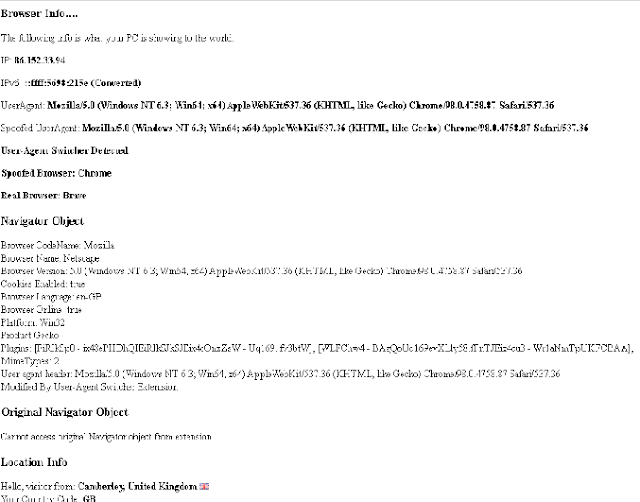


You can see here that although the user-agent strings are exactly the same my code that detects the browser has correctly recognised the real browser as Brave by using the function this article is about and for the spoofed Browser name it shows Chrome, which is the browser Brave tries to mask itself as.

This handy little script is on all my browsers bookmark bars for easy access and I find it very helpful for quickly seeing if a user-agent switcher is enabled and what if any, my browser it is pretending to be, as well as my current GEO-IP location in case I am using a global VPN, TOR, Opera or a proxy.

Let me know what you think of this function tested in Firefox, Chrome, Opera, Edge and of course Brave.

By Strictly-Software


Sunday, 15 December 2019

Browser Slow Down May Have a Windows Cause

By Strictly-Software

Yesterday if you read my blog article about Firefox and Chrome slowing me down as if I was being dragged through mud by a 3 legged donkey, then you will know that I was blaming the browsers and their settings for the slow down.

However when I could take no more, of browser windows hanging and then seemingly Windows applications not opening when I clicked the desktop icon which I have never had before I thought it must be a virus or some sort of app slowing me down however virus scans with Windows Defender and MalwareBytes AntiMalware showed nothing at all.

I was trying to open applications like Open Office only to see the process in the task manager running as a background process. It was not up the top under Apps, but just sat there forever under background processes.

I also had 100% Disk usage with no singular app or process looking like it was causing it. I also had high memory and CPU usage. So I thought what I had done lately. I went to Programs and Features to see which applications had been updates or loaded recently. Skype was there, like it is today, and I removed it as I can no longer use it with Windows 8.1r.

There was also Spotify which I hardly ever use so I uninstalled that as well. However it was after this I started getting the problems.

So I went to System Restore Points and noticed a Critical Windows Update had been carried out on the 11th of this month. I ticked the box to show all restore points and chose the Automatic Restore Point before the update.

I did a system restore to that date which was 2 days before the Windows Update and after an hour I had my PC back and working. It was much faster and the browsers were fast as well, both Chrome and Firefox.

However I will not take away the points I made yesterday about over complicating the options and issues for privacy and security which seem far too over the top for the average user to understand.

So when I was finished with what I was doing I went to shut the laptop off and did the Windows Update again. This time it seems to not have slowed everything down. The Critical Update has been done and I have a much faster laptop. For example just look at the Task Manager, which for the same apps, with the same tabs open was showing 100% DISK usage and high Memory and CPU usage, with programs running in the background not as open Apps.

However I am not holding my breath as it seems that all these browsers and other apps like Rapport (banking crud software), seems to be slowing the laptop down.

I think it is time I do a proper search of the computer, remove apps I don't use, run Chkdsk -f (from the command prompt), and see if a particular browser is causing me issues.


At the moment I have 5% CPU, 40% Memory 3% Disk usage (Not the 100% I was seeing all the time).

I have no ideas what the Windows Update did to screw this up and when I look at programs recently installed I only see Google Chrome as having updated itself today. Firefox is set to auto update so I will wait to see what happens when the latest version comes in as I am currently on version 70, and yesterday I was on version 71. Since Chrome updated however the CPU and Disk Usage also started to spike again.


I have decided to uninstall Chrome and just use Firefox and since doing so my disk usage is running at 1%. I have no idea what Chrome could be doing to cause these memory leaks and disk usage. I did notice in their settings under advanced the other day an option to look for "malware" that could be slowing your computer down. I reckon it is more to do with all the holes that let PUPs and other files that keep popping up after a scan in the Chrome Roaming folder that they are looking for.

However it in not uncommon for people to have issues after Windows Updates. User Profiles going missing causing you to think you have lost all your apps and other weird things. Having to do restore points seems drastic but at the moment I am happy as my apps are all running and the task manager is showing good stats. However I still think Firefox's security and privacy options are too much for the average user and some of them even confused me as their was no explanation. So read that article if you can.
I think these auto updates behind the scenes can cause major slowdowns and they should all be optional. If I have a version of Chrome that is running fast, not causing major CPU, Memory or Disk usage then I should be able to keep it. I don't want some new buggy install being rolled out and then a fix for that buggy version rolled out later.

As I said earlier IE only brings a new version of IE out once every couple of years. I cannot really see the need for 70+ versions of Chrome or Firefox unless they contain bugs and future version are to fix them.


By Strictly-Software

© 2019 Strictly-Software

Friday, 29 April 2016

Chome and FireFox really getting on my tits....

Chome and FireFox really getting on my tits....

By Strictly-Software.com

Chome and FireFox really getting on my tits....

Chrome was by browser of choice, due to being light weight and fast.

FireFox was in 2nd place due to the range of plugins available.

I had relegated IE into usage only to test code for cross browser compatibility issues.

However I am finding that I am actually using Internet Explorer more and more due to constant issues with both of the latest versions of these browsers.

I am running Chrome: 50.0.2661.75 (64-bit) And FireFox 46.0 buld no: 20160421124000 (64 bit) on all 3 of my machines (Win7 & Win 8.1)

There was a stage when both these honey's were humming like a bees. I even put up some articles on how to improve the speed on both browsers:

Speeding Up Chrome Can Kill It
Speeding up Google Chrome with DNS Pre-Fetching
Performance Tuning FireFox

I also put up a general PC and Browser tune up article with free tools, command line prompts and some basic things to try if you had a slow computer: Speeding up your PC and Internet connection.

However I have even found myself using IE 11 more and more due to constant hanging, pages not loading at all with the "processing request" message in the footer, or waiting for some 3rd party non asynchronous loaded in script, to download and run that blocks the site or page from running.

I think there is a far too much "API JIZZ" in the community at the moment.

What this means is that developers, due to their nature to impress and gold plate code, even when the spec doesn't call for it, are now using so many 3rd party and remotely hosted plugins like jQuery, Google Graphs, tracker code, plus loads of funky looking CPU consuming widgets to make their pages look good.

You only have go into Facebook or G+ and try and write a message. Not only will Google Plus's new post box move around the page before you can start writing, but both websites are constantly analysing your keystrokes to find out if the previous string matches a contact, community or page, in your contact book for them to link to.

The more people and pages you have stored the slower this process becomes. Yes is might be handy but why not just require a symbol like + in Google+ to be put before the person name so that the code only checks that word for a relation.

Imagine having a list of thousands of pages, liked communities/pages and contacts to be constantly checked on every keydown press with AJAX requests. That is overkill. It slows down systems .

I still have two windows from Chrome spinning away for (Google Blogger blogs) at the moment. There is not much 3rd party code on these pages but they are having trouble and showing common "Waiting for Cache" and "Processing Request" messages in the status bar.

This is the same sort of thing I get in FireFox. Although in this browser, what kills me is just the slowness of getting from page to page. On many sites I have to refresh it multiple times before the code all loads and this goes for online banking to online betting sites. Just trying to watch a race on their Flash screens is a nightmare.

I had a bet on a horse the other day on Bet365.com just so I could watch the big race with an unbeaten in 11 straight wins, Douvan, running. However Bet365.com video didn't start and in SkyBet it was stuttery and kept losing picture and sound. I missed the end of one race where a horse I had backed jumped the last fence into the lead but when the picture came back it had finished 3rd!

They keep telling me to clear the cache, reboot the router and do speed tests. Things I have done many times. I have 54Mbps download speed at work and 28Mbps at home. I can stream 4k UHD TV to multiple screens so download speed is not the issue something else is.

Speedof.me is the best online speed testing site I have found as it as it uses no extra files and is ran in pure HTML5 with no Flash, Java or ActiveX type objects requiring to be loaded for it to run.

What is causing the problem I have no idea as my broadband speed seems okay. I suspect it's the large number of reverse proxies being used and the download of shared 3rd party scripts and widgets that can hang due to a large number of HTTP requests.

I tried deleting my userdata file for Google by searching for it in the address bar of Windows Explore with this line: %USERPROFILE%\AppData\Local\Google\Chrome\User Data 

I have also tried disabling Flash as so many times I see the "An object has crashed" bar in the header that is related to the Flash Container object failing. Sometimes a reload works other times it doesn't.

However so many sites STILL use Flash it is hard to live without it really. For example the WHOLE of Bet365.com is made in Flash which makes it very user unfriendly and hard to use with sticky scrollbars and issues with selection of items.

If anyone has similar issues or ideas on resolving them let me know, as I never thought I would be going back to IE to use as my main browser!

By Strictly-Software.com

©2016 Strictly-Software.com

Monday, 9 February 2015

Speeding up Chrome can KILL IT!

Speeding up Chrome can kill it!

By Strictly-Software

Lately I have been really disappointed with the performance of my preferred browser Chrome.

I moved from FireFox to Chrome when the amount of plugins on FireFox made it too slow to work with however this was when Chrome was a clean, fast browser. Now it has just as many plugins available to install as FireFox and the performance has deteriorated constantly over the past few versions.

I am a developer so having 20+ tabs open in my browser is not unusual however when they are all hanging for no reason with "resolving host" messages in the status bar something is wrong.

I have even removed all my plugins that I had installed and decided to leave that to FireFox if I need to test different agents, hacking and so on. However even with a simple install the performance has been crap lately!

Therefore looked up on the web for tips on speeding up Chrome and found this article:

http://digiwonk.wonderhowto.com/how-to/10-speed-hacks-thatll-make-google-chrome-blazing-fast-your-computer-0155989/

It basically tells you some tricks to speed up Chrome by modifying some settings by going to chrome://flags/ in your address bar.

There is a warning at the top of the page that says:

WARNING These experimental features may change, break or disappear at any time. We make absolutely no guarantees about what may happen if you turn one of these experiments on, and your browser may even spontaneously combust. Jokes aside, your browser may delete all your data or your security and privacy could be compromised in unexpected ways. Any experiments that you enable will be enabled for all users of this browser. Please proceed with caution. Interested in cool new Chrome features? Try our beta channel at chrome.com/beta.

So these are all "experimental" features and from the sounds of it they could even make it's security and performance worse not better. Even a few of the tweaks suggested by the article had already disappeared from the settings page.

I did what was still available and a few more tweaks after careful consideration and what happened?

Well at first some pages seemed to load quicker but then I found that:

  • Some sites without a www. sub domain wouldn't load.
  • Some pages wouldn't load at all.
  • When I came into work today even though a Chrome process was running with 0 CPU usage nothing was displayed.
I had to re-boot, and try 3 times to open Chrome before getting back to the chrome://flags/  page and restoring all the defaults. Since then everything has been okay.

So if your going to tweak be careful - it could take down your whole browser!

The best way to speed it up is to remove all the plugins and add-ons and leave that to FireFox. Turn off 3rd party cookies and any 3rd party services that involve constant lookups and try to keep it clean and simple.

It seems that with the over usage of AJAX and sites like Facebook/LinkedIn/Google+ where as you type it constantly looks up the word to see if it matches a name or contact that this "API JIZZ" as I call it has really slowed down the web.

Just by having Google+, Facebook and LinkedIn open at the same time can eat up your memory and I'm on a quad core 64 bit machine.

In my opinion there should be settings to enable you to turn off the API JIZZ and flashy features that rely on lots of JavaScript and AJAX.

It slows down your computer and is not needed most of the time. Having big database lookups on each keystroke is obviously going to use up lots of memory so it should be an option you can disable.

Anyway that's down to the developers of all these social sites who seem to love AJAX for everything. A simple submit button would do in a lot of cases!


Wednesday, 12 December 2012

HackBar Not Showing in Firefox

How to display the HackBar in Firefox

My preferred browser for the Internet is Google Chrome. I moved to Chrome because of it's speed and simplicity as well as the fact that like most people, when I got disillusioned with IE and moved to FireFox I installed so many plugins that it became so slow to load and has gone through periods of hanging and high CPU and memory usage.

Therefore I have decided to use FireFox for certain development and debugging when I want to use plugins. Plugins such as the Colour Picker ColorZilla, the Web Developer Toolbar, the Modify Header plugin or any number of others I have installed. I then keep Chrome plugin free to keep it fast for browsing.

I did try Chrome out with plugins when they first started supporting them but I soon decided I didn't want to turn Chrome into another FireFox by overloading it with plugin checking at start up which has happened with FireFox.

So Chrome is plugin free and fast, FireFox is useful and handy, full of plugins and tools and good for development and although IE 9 is fast and probably just as good nowadays I am guessing most developers won't go back to it after Microsoft taking numerous versions to just standardise their code and CSS after years of complaining from the masses.

One of the plugins I use on FireFox a lot is the HackBar.

Not only is it useful for loading up long URL's, quickly Base64 decoding or encoding strings as well as URL Encoding and Decoding but it has numerous other features if you want to test your site out for XSS or SQL injection vulnerabilities.

However I usually find I use it mostly for quickly encoding and decoding strings and sometimes I find myself having to put really long ones in the box and extending it so much the viewport becomes unusable. I then find myself disabling the add-on.

However on more than a few occasions now when I come to re-enable the HackBar by right clicking in the menu bar and ticking the option for HackBar OR using the "View > HackBar" menu option. I then find that it doesn't display as expected and hunting around for it is of no use at all.

You can try disabling it in the Add-ons section or even un-installing and re-installing it but even then it might not appear.

However I have found that a quick hit of the F9 key will make it show. Simples!

So if you are ever having issues trying to make toolbars or plugins show that you have de-activated try the F9 key first before anything else.

Sunday, 17 June 2012

Flash Crash Problems with Firefox 13.0.1 and Adobe Flash 11.3.300.257

Flash Crashing constantly in Firefox 13.0.1

All day I have been experiencing problems with Firefox and Flash.

Flash is notoriously buggy and crashes a lot which is why HTML5 offers so much hope for those of us wanting to watch movies online, on our phones or devices and Youtube style with the VIDEO tag and a wrapper iFrame.

I don't have a fix but I just wanted to put it out there that Flash version 11.3.300.257 is causing constant problems when used with Firefox 13.0.1.

A movie will start playing and then hang or the screen will go black before the "flash crash" message appears.

I am trying to watch some comedy central with another header plugin and up until today I have had no problems at all.

I don't know if this a problem with Flash or Firefox or a combination of both but it is really starting to piss me off. I have re-installed both Firefox and Flash multiple times.

I don't know why Adobe cannot get their act together with Flash as people are working their ass off to accommodate them and their notorious bugs, high CPU and memory leaks on devices whereas before they were just going to ditch Flash altogether and wait for HTML5 to spread.

If anyone else is having the same problem with Flash crashing let me know.

Saturday, 16 June 2012

Forgotten your SSH Password?

How to quickly recover your SSH password

If you are like me your memory sometimes fails you and like today I tried to login with SSH into my server with Putty and couldn't remember my password. After about five attempts of all the ones I could remember I decided to give up incase I blocked myself.

Luckily I had added my IP into AllowHosts so I wouldn't be blocked by the DenyHosts settings which contain a long long list of IP addresses who have tried hacking my server but it was obviously doing my head in.

I then thought of a quick way of recovering it.

I could access WebMin in Chrome easily as my password was auto-filled stored but in Firefox it wasn't which had the web developer toolbar. Therefore as copying passwords doesn't work I couldn't use the web developer toolbar to show the password with a single button click.

Therefore in Chrome with the auto-filled password for my https://domain.com:10000 login page I did the following.


  • Hit F12 - this opens the developers console
  • Choose the Console tab
  • In the console write the necessary code to change the type of the input from "password" to "text"
  • If the password doesn't have an ID like VirtualMin then you can just access the first password in the form e.g:

document.forms[0].pass.type = 'text';


And if my magic your password field will change into a text input and you can retrieve your password.

And if your in any doubt about why you should leave your computers locked when you are away from your desk then this should be a reminder to you!

Wednesday, 30 May 2012

Overcoming the Demand 5 TV Catchup Performance Problem

Solving the Demand 5, Flash Movie problem - and other Catch Up TV website issues

If you are from the UK then you may often like to catch up on missed TV programmes by watching the online TV catch up services such as BBC iPlayer, Channel Four's 4OD and Channel 5's TV Catch Up service called Demand 5.

The past few nights I have been trying to catch up on a number of programmes shown on Channel 5 as for some reason Five Star has stopped showing the latest episode of Burn Notice on a Sunday afternoon and I like to watch other shows (when they are available) like NCIS and The Mentalist etc so I try to use Channel 5's catch up website Demand 5.

I really wish they would buy the rights to show for longer so that you could watch a programme for more than just 7 days but then it's not called catchup TV for nothing and most TV programmes are made in the USA.

However when I use the Demand 5 website to watch the programme I experience a very annoying problem which effects every browser and computer I tried using including Chrome, FireFox, Safari and IE 8 on a Sony Vaio Windows XP 32 bit Dual Core and IE 9 on a Dell Windows 7 64 bit Quad core.

The Demand 5 catchup TV problem means that pre-show adverts play fine and then after a period of anything between a few seconds and a couple of minutes of the actual show playing the Demand 5 Catchup TV programme would either just freeze up and not start playing again at all. 

Or it would play for a while before stopping for a few seconds as if it was buffering more content before playing for another few seconds again - totally unwatchable.

I couldn't even move the skip bar backwards or forward and the pause / play button just didn't work at all.

A refresh would reload the page, show the adverts before the programme again and then the problem would re-occur. It was all very annoying..

After a number of seemingly ignored comments to Demand 5 complaining about them not fixing the problem and after reading on almost every show on the site that a large number of other people have had similar problems I tried solving the issue myself.

If you go to any show on Demand 5 and read the comments at the bottom e.g www.channel5.com/shows/ you will see comments along the following lines.

"Really poor transmission of episode 23. Can't get more than 20 seconds of coherent dialogue and then it freezes"
"Impossible to watch because of the poor service from Demand Five's website. Even worse than Karen's experience."
"Why is demand 5 not working? It hasn't worked for several weeks. You don't get this with iplayer!!!"
"doesnt seem to be able to play anything"
"wow the longest i got to watch before it froze was 50sec. i did give up 5min in though. I'm with sue off to iplayer which works."
And those are just a snapshot of the many comments on a couple of shows I wanted to watch today all complaining about the Demand 5 website video freezing or not playing at all. 

Demand 5 really need to fix this problem if they want to keep visitors coming to the site.

Due to my own comments and complaints not being answered I tried fixing the problem with Demand Five freezing myself - only because I really wanted to watch the latest episode of NCIS.

I wasn't going to step through all their custom JavaScript and I have no idea what they are doing server side so proper debugging is out of the question but what you can do in situations like this is turn everything else off and then back on again one by one to see if any section of the browser or website is causing the problem.

So without knowing whether they are running some client side code constantly that rewrites the DOM such as many sites try to use to beat all the plugins that are designed to hide adverts, images and flash I could try to see if turning off those parts of the site helped as they maybe running code to constantly re-insert adverts into the HTML to replace any removed by plugins like AdBlocker.

If they were doing something like this (and I don't know if the are) then it's possible that a race condition might occur between Demand 5's own advertising code and any any plugins or virus checkers (which have built in anti-banner options) that constantly scan and rebuild the DOM.Only proper debugging will prove if that is happening,

Debgging the Demand 5 website Performance Problem

So to get a fix for the the Demand 5 problem as soon as possible the first thing I did were all the normal things that developers try when met with similar issues. If you find similar problems on other sites or with plugins for websites you should always try this list first to rule them out as reasons for the problem.
  • Disabling all cookies - the Web Developer Toolbar in Firefox is great for this and if you are not signing into the website there is no need for cookies to be enabled anyway.
  • Disabling Java - Most websites don't even use Java Applets any-more so its not really needed until you find a site that actually makes use of it.
  • Disabling JavaScript - Most websites that show TV content actually require JavaScript to be enabled for their site to work at all even though a basic Flash OBJECT or VIDEO element on a page outputted with server side code playing a movie doesn't require it. However companies like Demand 5 or iPlayer don't do this because it mean their content can easily be stolen or watched overseas by non UK citizens etc so JavaScript is actually required to load in the adverts and programming in chunks.
  • Turn off all Flash tracking by disabling Flash cookies. You do this by right clicking on a flash movie, click the Global Settings option and then choose "Block all sites from storing information on this". Unless you really want another way for advertisers and websites to track your online movements there is little need for this option to be enabled. You may want to check your video and microphone options as well.

Even after all this the Demand 5 flash videos were still having problems playing and although the options I just disabled are worth doing anyway to prevent online tracking by advertisers it didn't fix the Demand 5 TV catch up problem.

Flash is a well known CPU killer on websites and I have seen whole PC's crash due to one to many flash object on a web page being left open too long. Just open a page with a few flash movies and watch the CPU rise in your task manager if you want proof - Chrome seems particularly bad for this but despite this many sites continue to try and write their whole website in Flash which is a BAD IDEA!

However I did notice that the page that held the movie also contained a large number of other banner adverts that used both flash and animated gifs and I wondered whether there was some sort of problem occurring due to all the techniques advertisers now use to try and overcome advert blockers.

Basically websites or plugins use a timer to re-insert banners that have been removed from the HTML DOM by advert blocking plugins like AdBlocker which also uses a timer to remove any adverts re-inserted this way. Both sets of code doing the opposite to each other every split second - not good for performance!

Because both the advertiser and blocker are using the same methods to scan and modify the DOM constantly it basically turns it into one big performance nightmare in which your DOM is constantly being re-written on the fly. The less client code that runs the better KISS IT (Keep It Simple Stupid) for a multitude of reasons.

The Fix for the Demand 5 website Performance Problem

I opened Firefox and went to install a plugin I use on my other computer called Flash Blocker but I noticed a new plugin had been released called Image and Flash Blocker 0.7. I thought I would try it out.

At first I thought something hadn't loaded as I couldn't see any options under my Tools menu however you need to use the context menu (right click the mouse button) to use the add-on and see the various options.

Choose "Image and Flash Blocker" from the context menu and then select "Images off, Flash off" and hey presto most of the imagery, banner adverts, flash banners and movies disappear.In fact most of the Demand 5 page is blank without these features enabled.

The flash movies are replaced with a little red circle with a white "F" (for Flash) in the middle and if you want that particular flash movie to appear you just click it.

I turned every image and flash movie off on the latest episode of the show I wanted to watch e.g Burn Notice, NCIS, Archer, The Mentalist etc, and then I clicked the main movie screen to turn the video back on.

When the adverts had finished playing the TV show played without a single stall, stoppage or flicker. Hey presto problem solved! Big slap on the back for moi.

Remember - too much whizz bangery can cause performance issues

Remember images, Applets, Active-x objects, Flash and all the other fancy whizz bangery that comes with HTML 5, CSS 3 and modern JavaScript libraries is all well and good but more often that not it can cause a massive performance overhead on your computer. The best tactic is to turn it all off and then only turn on what you need once you know you need it and the clients browser supports it.

In the case of fixing Demand 5 catch-up TV it was definitely a case of less the better as it seemed that too much was going on behind the scenes to allow their TV shows to play smoothly. What exactly is happening I don't know without access to their source code but this is definitely a workaround for the Demand 5 performance problem that works!

Hopefully this blog article will help others overcome the same problem. I have tried writing comments with a link to this article on most of the shows I watch as they all contain similar complaints but for some reason they don't like the fact I put a link into my comment or try to help people solve their own technical issues.

So if you watch Demand 5 and have performance problems remember - turn off images and flash and then turn on the only flash movie you need - the TV programme you are trying to watch and then enjoy it without any flickering or stopping every 20 seconds.


Tuesday, 10 January 2012

Problem with Google Chrome and Twitter

Google Chrome 16.0 and Twitter Direct Message Problem

First, I can't believe my version of Chrome is now on 16.0.912.75. It seems like only yesterday I had Chrome version 1 and it didn't change for a good while.

Unlike Internet Explorer which refuses to force automatic updates on their browser users which mean developers still have to cater for IE 6 and non standard compliant code due to IE 9 not being available on Win Vista or XP. I do appreciate that they automatically upgrade the browser when required.

However it does seem like FireFox (version 9.0.1 I am currently on now) and Chrome are in some kind of race to see who can get to version 100 first. I haven't exactly noticed many differences between all these nightly version changes so it must be bug fixing as if it isn't I have no idea what it is apart from security hole patches.

Anyway, I recently got a new laptop for work (a DELL, 64bit, quad core i5 Win7) which is good APART from the horrible, horrible flat mouse pad which seems to go into sticky scroll mode a lot. You know when suddenly the mouse cursor turns from a pointer into cross-hairs and as you move the cursor the whole page scrolls with it.

Tonight I noticed an issue with this and Twitter's new format for Direct Messages which open in a draggable DIV popup.

I went to write a Direct Message and the cursor went into sticky mode. I couldn't remove the mouse cursor from the pop div as wherever it went so did the popup box. Very annoying.

What was interesting was that as soon as this issue occurred my CPU and Memory for the Google Chrome.exe *32 process went shooting through the roof and my laptop turned into a helicopter. I honestly thought the machine was going to take off it was that loud from the hard-drive spinning away.

The only solution was to move the cursor off the webpage to the toolbar and kill the page totally and as I did the CPU and Memory dropped like a stone from a cliff.

This is obviously an issue with DELL's mousepad but it reminded me of an issue I had with my own HTML WYSIWYG editor which was a pop DIV you could drag about the screen.

The editor had a couple of listboxes on it for selecting fonts and sizes etc but because I had a a drag event attached to a mousedown and mousemove event it meant that you could never actually open the list and scroll it down to the bottom as if you did all that happened was the Editor moved around the screen.

It was a simple drag n drop solution which was fired by a mouse down event setting a flag so that when set any mouse move event moved the referenced DIV until a mouse up event set the flag off.

I got round the problem at first by just making the top and bottom sections of the DIV container for the editor draggable which did fix the issue but in the end I settled for what is getting more common as a solution for the old pop up window, the lightbox.

I don't know why Twitter need to make their new message pop div's draggable as they change the backgrounds opactity like a lightbox anyway so I don't see the point in the draggable effect at all.

I know it would certainly help with my DELL's sticky mousepad problem!

Wednesday, 7 December 2011

Speeding up Google Chrome with DNS Pre-Fetching

Why Google Chrome is such a fast browser


I have written a lot about browsers, their intricacies and problems with upgrades and performance including Performance Tweaks for Firefox that you can access from typing "about:config" in the address bar that can increase your browser performance.

Whilst I use Firefox mainly for development at work I have always used Chrome for browsing due to its speed and I find myself using it more and more for development.

Their built in developer tools are just as good as the Firebug add-on which has gone through phases of being slow, buggy and sometimes just plain unusable.

Not only does Google Chrome allow you to inspect elements, modify the DOM on the fly, check resource load times and other useful developer tools it has some other features that many people probably don't even realise.

If you have never done it before just type in "chrome://version/" to your address bar to see details of your current browser e.g

Google Chrome 15.0.874.121 (Official Build 109964) m
OS Windows
WebKit 535.2 (@100034)
JavaScript V8 3.5.10.24
Flash 11,1,102,55
User Agent Mozilla/5.0 (Windows NT 6.1; WOW64) AppleWebKit/535.2 (KHTML, like Gecko) Chrome/15.0.874.121 Safari/535.2
Command Line "C:\Users\me\AppData\Local\Google\Chrome\Application\chrome.exe" --flag-switches-begin --enable-print-preview --flag-switches-end
Executable Path C:\Users\me\AppData\Local\Google\Chrome\Application\chrome.exe
Profile Path C:\Users\me\AppData\Local\Google\Chrome\User Data\Default

A nice overview of your browser.

For a list of domains that your browser pre-fetches behind the scenes to speed up load times type the following into your address bar "about:dns" You will see a list of popular domains that you visit along with stats about each DNS pre-fetch.

At the top of the report you will see the 10 pages that Google pre-fetches on startup and it does this to help speed up your browsing experience as it calculates which sites you visit the most so that it can keep these handy in case you want to visit them. By pre-fetching them when you start the browser up it make it look like page load times for these domains are a lot faster than they otherwise would be.

For example my own report shows:

Future startups will prefetch DNS records for 10 hostnames
Host nameHow long ago
(HH:MM:SS)
Motivation
http://blog.strictly-software.com/01:09:02n/a
http://connect.facebook.net/01:09:01n/a
http://pagead2.googlesyndication.com/01:09:01n/a
http://platform.twitter.com/01:09:01n/a
http://s7.addthis.com/01:09:01n/a
http://shots.snap.com/01:09:01n/a
http://twitter.com/01:09:01n/a
http://www.blogger.com/01:09:01n/a
http://www.darkpolitricks.com/01:09:53n/a
http://www.strictly-software.com/01:09:01n/a


All sites I regularly visit and at the bottom of the report I get the following message;

Preresolution DNS records performed for 328 hostnames
Preresolving DNS records revealed non-existence for 5 hostnames.


Another more complex report can be seen with this command "about:histograms/" which will show a number of basic graphs about various DNS checks, lookup speeds and other various stats.


This DNS Pre-Fetching is meant to speed up your browsing experience however sometimes it can cause issues which are noticeable if you ever experience slow page load times along with the words "Resolving Host" in the status bar.

If you have this issue try disabling the pre-fetch feature and compare and contrast page load times with the option on and off with a "ipconfig /flushdns" in between each attempt to make the test fair as well as clearing out any browser cache.

You can do this with either a web developer toolbar, choosing "Tools > Clear Browsing Data" or by selecting "Toolbox > Options > Under the bonnet > Clear browsing data".

You will also find in later versions of Google Chrome they have combined this pre-fetch option with the pre-rendering option under "Predict Network Actions" which is found under "Toolbox > Options > Under The Bonnet > Predict network actions to improve page load performance", 

This option will not only turn on the DNS pre-fetching option it will also aim to speed up searches by pre-loading the first 3 results of any Google search. They do this because statistics apparently show that when a user runs a search they will click on the first 3 links.

Obviously if you don't do that then those page loads have been a waste of time and resources as well as ensuring the HTTP requests are logged in any log file on your server.

However the aim is to speed your browsing up by pre-fetching pages you visit a lot which is a good idea in theory.

You can read more about these two features, pre-fetching and pre-rendering here:

http://blog.chromium.org/2008/09/dns-prefetching-or-pre-resolving.html
http://www.chromium.org/developers/design-documents/dns-prefetching


Wednesday, 31 August 2011

Would you switch back to IE9 now that they have finally made a good browser?

Now that IE9 is standards compliant and actually good will you switch back to using it?

A few months ago I wrote an article about why I hated debugging in IE8 which revolved around their single threaded event model (window.event) and the delay it took before debug messages were outputted to the console.

A member of the Microsoft team commented that he had run the test case I had created in IE9 and that it had run perfectly. No high CPU, no frozen console, no high memory usage or other performance problems at all.

As you cannot install IE9 on WinXP, which is what I use on my home laptop (due to Vista being shite), I haven't had the pleasure of using Internet Explorer 9 a lot until I installed Windows 7 on my work PC.

I have to say that Windows 7 is actually a great operating system and I especially love the way it has incorporated many of the features of clean up and performance tuning tools like Tune Up Utilities and CCleaner into the main OS.

I also have to say that Internet Explorer 9 is the first IE browser I actually like.

Not only is it blindingly fast they have finally listened to their customers who have been complaining for years and made their JavaScript engine standards compliant.

Obviously this makes the Browser / Document mode spaghetti even harder to detect and I haven't been able to find a way as of yet to detect IE 9 browser mode running as IE 8 or 7 on 32 bit machines but that is not a major issue at all.

What I am wondering though is that now that IE9 is actually a good browser, with a good inbuilt development console and element inspection tools, how many developers will actually return to using it either as their browser of choice for surfing the web or for their primary development.

My browser development survey which I held before IE9 was released showed that developers would rather use Chrome or Firefox for surfing and would also always choose the development tools that those browsers bring than use IE 7 or 8.

I know that I changed from using IE to Firefox as my browser of choice some eons back and I changed from Firefox to Chrome for both surfing (speed is key) and developing (no need for Firebug or any other plugin) the other year when Firefox started to suffer major performance problems.

These performance problems are always either to do with having far too many plugins installed. Setting the browser up to check for new versions and any installed plugins on start up which cause long load times, Firebug issues and errors in the Chrome source. This is on top of all the constant problems that Flash seems to bring to any browser.

I use Chrome for surfing due to it's speed but if I leave a few tabs open all night that contain pages running Flash videos then by morning my CPU has flat-lined and memory has leaked like the Titanic.

This is more a problem with Flash than Chrome and I try to keep this browser for surfing as clean and as fast as possible by not installing plugins. Then if I need to hack around or do some hardcore web development I will use Firefox and all the great plugins when I need to.

I don't think I could really get hacking with Chrome alone as when I am really getting stuck into a site I need my key plugins e.g the web developer toolbar, hackbar, header modifier, Request and Response inspectors e.g HTTP Fox, Firebug, ColorZilla, YSlow and all the Proxy plugins that are available.

However for basic development, piping out messages to the console, inspecting the DOM and checking loaded elements and their responses then Chrome has everything Firebug has without all the JavaScript errors.

In fact it's surprising how many developers don't even realise how much is possible with Chrome's inbuilt developer tools, speed tests, header inspectors, element inspectors and DOM modifiers and other great debugging tools that used to be the preserve of Firebug alone.

Which leads me back to IE9.

Yes it's fast and it's developer tools are okay with options to clear cookies, disable JavaScript, inspect the DOM and view the styles but it's no Chrome or Firebug yet;

Therefore what I want to know is how many people (and by that I mean developers) will switch back to using Internet Explorer 9 for pure web surfing?

For sure it's fast, supports the latest CSS standards and all the great HTML 5 features that we have all seen with floating fish tanks and the like. But is this enough for another browser switch?

I have all the major browsers installed at work on Win7 including IE9, Firefox, Chrome, Opera, Safari, SeaMonkey and a number of others I cannot even remember the names of they are that obscure.

Before upgrading I even had Lynx and Netscape Navigator 4 installed as I used to be so anal that any code such as floating DIV's had to work in the earliest browsers possible. However I only use these browsers for testing and I stick to Chrome (for surfing) and Firefox (for hacking) which leaves little room for IE9 at the moment.

I know it's a good browser. It's standards compliant and it no longer crashes when I try to output anything to the console so why shouldn't I try it again.

Maybe one of my readers can help me decide on the browser of choice for surfing and development and how IE9 fits into that toolset.

Maybe I am missing some really cool features that I would use all the time but to be honest I am not into throwing sheep at randoms or constantly voting sites up and down and writing comments on them. Therefore for me to switch back from Chrome to another browser such as IE9 there has to be a really good reason for me to do so.

So does anyone have any reason why I should re-consider using IE9 at work for my web surfing or development?

Sunday, 27 December 2009

Reasons why Google Chrome is a great Browser

A list of reasons why Google Chrome is a great Browser

Ever since Google introduced Chrome I have been using it all the time for surfing the net. I had been using FireFox purely for the standards compliance, speed and features but then the more features that were added the slower it got.

I still use FireFox for development and its rich library of plugins and you can speed it up by following the tweaks listed in my Increasing FireFox Performance article. However when I just want to surf the net, watch movies or read articles Chrome is the browser I choose. Here are some reasons why.

  • Reason 1 Chrome is great > It's simple to use and not full of features that are purely there for marketing but you never use. It does the job simply and it does it well.
  • Reason 2 Chrome is great > The Bookmark bar is great for storing quick links to your favourite sites.
  • Reason 3 Chrome is great > It's Fast. It's fast to startup and fast to load pages. It's JavaScript engine is also fast and solid its less forgiving than FireFox that could be considered a good thing or a bad thing depending on how sloppy your code is.
  • Reason 4 Chrome is great > It's Easy to surf in a semi private mode e.g Incognito browsing any cookies are destroyed after browsing and no download or browsing history is kept.
  • Reason 5 Chrome is great > The inbuilt developer tools are pretty good. The Developer console offers a good debugger, JavaScript console, DOM viewer and element inspector.
  • Reason 6 Chrome is great > Its standards compliant.
  • Reason 7 Chrome is great > It now has support for add-ons and plugins so can compete with FireFox for great features. Turn off adverts and flash by default to speed up load time even more. Read my article on Google Chrome plugins for more details.

Thursday, 24 December 2009

Performance Tuning Firefox

Firefox Tweaks for increased Speed and Performance

This article has been written specifically about improving the performance of the FireFox browser. If you are having problems regarding performance in general then I would suggest looking into other areas first before tweaking your browser settings.

I have written a specific article about performance tuning your PC, Network and Browser here: blog.strictly-software.com/2009/12/performance-tuning-your-pc-and-internet.html

The following guide should only be attempted by those people who are comfortable with changing core application settings. For those people who want to increase browser performance without fiddling about with the configuration I would recommend the following:

-Use the free to download application FireTune which will modify some of the same settings that I am going to list automatically.

-Use the TuneUp Utilities Application which will modify some FireFox settings as well as numerous other settings related to Browser performance, TCP/IP settings, Disk space, registry, un-used programs, CPU and Memory management and numerous other performance tweaks.

Otherwise go to about:config in the address bar of FireFox and enter the "here be dragons" section.

Most of these options will already exist but if they don't you can add them to the config by right clicking, selecting New (boolean, string, integer) adding the the correct name and then the correct value. Obviously if the value is a number you choose integer and if its true or false boolean otherwise its a string.

Before doing any changes you should make a backup either manually by writing down current settings or using FireTune to do a backup or just copy the current settings from C:\Program Files\Mozilla Firefox\defaults\pref. Obviously if you saved your version of Firefox somewhere other than Program Files then you should look there.

Do a page load speed test before and after any changes from www.numion.com/stopwatch to see if the changes have made any difference always making sure that the browser cache is cleared before each test to make the comparisons fair.

To find out what each tweak does just append the full name to this URL


e.g


network.http.max-connections = 30
network.http.max-connections-per-server = 15
network.http.max-persistent-connections-per-proxy = 24
network.http.max-persistent-connections-per-server = 8
network.http.pipelining true
network.http.proxy.pipelining true
network.http.pipelining.firstrequest false
network.http.pipelining.maxrequests 8
network.http.request.max-start-delay 0
network.prefetch-next false
network.ftp.idleConnectionTimeout 300
network.http.keep-alive.timeout 30
browser.history_expire_days_min 10
browser.cache.memory.enable true

The following option depends on your RAM
  • For RAM over 2GB I use 65536
  • For RAM sizes between 512MB and 1GB, start with 15000.
  • For RAM sizes between 128MB and 512M, try 5000

The following article will list out the default values for this option.


browser.cache.memory.capacity = 65536 (see above for details)


content.interrupt.parsing[boolean] true
content.switch.threshold[integer]=650000
content.max.tokenizing.time[integer]=3000000
content.maxtextrun[integer]=8191
content.notify.backoffcount[integer]=200
content.notify.interval[integer]=100000
content.notify.ontimer=true
content.notify.threshold[integer]=100000
network.dnsCacheEntries [integer] 255
network.dnsCacheExpiration [integer] 86400
config.trim_on_minimize[boolean] true
nglayout.initialpaint.delay[integer] 100

This setting will disable 3rd party cookies from being saved. The possible values are 0 which accepts all cookies, 1 only accept cookies from the same server and 2 disable all cookies. Set it to 1 to block 3rd party cookies.

network.cookie.cookieBehavior 1

Optional - May increase performance but will also reduce usability so choose carefully

Limits the maximum number of pages stored in memory in such a way that they don’t have to be re-parsed when pressing Back and Forward. If you, like me, are not using the Back and Forward buttons that much but rather tabs then I see no reason for Firefox to keep a lot of memory with this.

browser.sessionhistory.max_total_viewers change to 1 (default: -1)

Disable Extension Compatibility Checks so that each time you load Firefox it doesn't check for new versions of your extensions. You must remember to do this manually from time to time if they stop working though!

extensions.checkCompatibility = False
extensions.checkUpdateSecurity = False

Stop Displaying Website Icon (Favicon) in Address bar & On Tab

browser.chrome.site_icons = False

Cool tweaks - Non Performance related

layout.spellcheckDefault 2 - extend spellcheck to form elements inputs as well as textareas
browser.blink_allowed = false - 'disable blinking text from <blink>
browser.search.openintab true - opens any search results from the search bar in a new tab instead of overwriting existing one

Open View Source in your favourite editor e.g Editplus

view_source.editor.external=True
view_source.editor.path= Path of Editor e.g C:\Program Files\EditPlus 2\editplus.exe

You also often have a lot of tabs open? This setting will decrease the minimum width of the tab so that more fits in before you need to scroll to see more tabs.

browser.tabs.tabMinWidth change to 70

To Enable Single Click Select URL of address bar use the below about:config Tweak

browser.urlbar.clickSelectsAll = True

To disable Single Click Select

browser.urlbar.clickSelectsAll = False

Auto Complete URL while You type at address Bar

browser.urlbar.autoFill true

This is a good hack to trim down that huge auto-complete list on your URL bar. By default it displays maximum 12 URL

browser.urlbar.maxRichResults (pick a number from 1 to 12)

Monday, 21 December 2009

Add-On Support for Chrome

Google Chrome Plugins

Google Chrome has been my favourite browser for plain old web surfing since it came out but one of the few downsides to this fast loading and stable browser is the lack of support for add-ons. This is one of the reasons FireFox has claimed such a major stake in the browser market because there are literally hundreds if not thousands of add-ons available to extend the browsers functionality.

Now Chrome has finally caught up and if you are subscribing to Googles dev channel you will be pleased to know that there are already a hundred or so add-ons waiting to be installed on your favorite browser. I have already installed Flashblock and Adblock and they seem to be working well. There does exist a web developer toolbar but its functionality is so cut down and basic at the moment its probably not worth getting.

Now if you are like me and have been working around the lack of plugins for Chrome by using bookmarklets then you will be pleased with this news. However if you are still interested in using bookmarklets which will work cross browser then here is another good one. It allows you to download Flash videos from YouTube at a click of a button so that you can watch them later on.

All you need to do is right click on the bookmarks bar (which should always be made visible) and then click "Add". Then in the Name you should put "YouTube Flash Downloader" or something similar and then for the URL you should paste in the following code:

javascript:window.location.href = 'http://youtube.com/get_video?video_id=' + yt.getConfig("SWF_ARGS")['video_id'] + "&sk=" + yt.getConfig("SWF_ARGS")['sk'] + '&t=' + yt.getConfig("SWF_ARGS")['t'];


This code has been updated to work with the recent changes in YouTubes API so don't worry as I know there is an old version of this bookmarklet floating around the web that doesn't work since November this year.

Now when you are on YouTube and a video starts playing you can just click on that bookmark link and the video should start downloading to your computer.

If you don't have a Flash player installed on your computer and want to play the FLV files in Windows Media Player then you can download an extension from the following location:


If you are interested in other cool bookmarklets then check out my previous article which contained one for viewing the generated source code of a page and one for dynamic DOM inspection.

Remember the cool thing about bookmarklets as apposed to add-ons is that they should work in all modern browsers as they are pure JavaScript. That even means IE 6!!

Also before everyone gets carried away installing lots of add-ons for Chrome just take a step back and remember why you're using Chrome in the first place. For me its because FireFox, which I use for all my web development, has so many add-ons installed that its become very slow to load and many of the add-ons can cause slow page loads e.g Firebug or errors. Therefore if you're like me and use many browsers keep the add-ons to a minimum and keep your web browsing fast.

I will shortly be writing an article about increasing speed and performance for all the major browsers but as a teaser I would give these pointers to quicker browsing.

  • Remove all add-ons that you never use anymore and disable those you rarely use.
  • Add-ons that will make your web surfing quicker such as FlashBlock, AdBlockPlus and NoScript are all good. Only enable those Flash movies and adverts if you really need to.
  • Turn off inbuilt RSS readers and use a special app if you require it.
  • Turn off all 3rd party cookies but keep Session cookies enabled.
  • Trawl through those preference settings and disable anything you do not use.
  • Disable link pre-fetching.
  • Regularly clear your cache, history and auto-complete data.
Those are some very simple tips for increasing speed. I will go into more detail about the user preferences, http.pipelining, max-connections and TCP/IP settings another day.

Friday, 28 August 2009

Firebug So So Slow

Developer Toolbars Slowing Sites Down

Following on from my whinge the other day about how IE 8.0's developer toolbar is causing pages to hang, CPU to max out (50% on dual core). I have noticed on a few sites now since upgrading to Firefox 3.5.2 and Firebug 1.4.2 that I have similar problems.

I have just been to my football site www.hattrickheaven.com and was clicking some of the leagues down the sidebars and wondering why the pages were taking so long to load. I then went to Chrome and tried the same links and the pages loaded as fast as lightening. This made me wonder about Firebug and low and behold disabling Firebug stopped the delay and the pages loaded very quickly. I would like some other people to try the same thing if they have Firebug and let me know the results e.g try these links with Firebug enabled and with it disabled:


With Firebug disabled they should load pretty quickly however with Firebug enabled its taking anything up to 15 seconds! Also check the Task Manager and see what CPU level Firefox shows as mine shows 50%.

I don't know if this is something to do with something within my page that Firebug cannot handle but the only validation errors I have are missing ALT attributes.

So as a tip for slow loading sites I would suggest in both IE and Firefox disabling the developer toolbar and Firebug and seeing if that helps speed up the load times. It seems to have worked for a number of sites now which is a shame as both toolbars should be great add-ons if only they could work without slowing everything down.

Tuesday, 25 August 2009

Firebug and Hightlighter.js Problem returns

Code Highlighting Disabled with Firebug 1.4.2

The other month I wrote an article explaining how after upgrading to Firebug 1.4.0
all my code highlighting went haywire
with bits disappearing all over the place. I thought I had fixed the problem as the code highlighting has been working fine in FireFox for a couple of months now but I have recently upgraded to FireFox 3.5.2 and Firebug 1.4.2 and now the problem is back in a slightly different form.

Instead of the code I am trying to highlight disappearing or being broken the code appears but the highlighting just doesn't activate and the code stays uncoloured. There is an error on line 1 of the packed version of highlight.js and 101 of that version unpacked with my unpacker tool.

return [O.substr(0, r.index), r[0], false]

The error being:

Cannot access optimized closure

If I disable Firebug on the page or the whole add-on then the code highlighting will work in FireFox so it does seem to be an issue with Firebug clashing with the highlighter code in some way.

I have tried downloading the latest version of the highlighter 5.3 from Software Maniacs but it makes no difference.

The highlighting continues to work in other browsers IE, Chrome, Opera, Safari etc and it will work in FireFox when Firebug is disabled.

The last few versions of Firebug have been very buggy in terms of inspection and performance so maybe this is a known bug. I did post a bug at Mozilla last time and I also contacted Software Maniacs. Until this gets resolved I suggest if you really want code highlighting then to use another browser or disable Firebug.

Sunday, 19 July 2009

Problems upgrading to Firebug 1.4.0

Problems with Firebug and Javascript Code Highlighting

UPDATE
Please read the following post for details about a resolution for this problem.
http://blog.strictly-software.com/2009/07/firebug-140-and-highlighterjs.html
You can view the original article along with the original file at the following link: http://www.strictly-software.com/highlight-problem.htm

I have recently started using a javascript include file from software maniacs called hightlight.js to highlight my code snippets that I use in my blog articles. It uses a callback function fired on page load that looks for CODE tags specified in the HTML source and then re-formats them by applying in-line styles appropriate for the code snippet. However I have just found a lot of my articles when viewed in Firefox 3 are not displaying the formatting correctly and most of the code disappears. For example if you view the code below and you can see that it shows a small JS function then that's okay. However if all you can see is closing tag } then I would ask one question. Have you just upgraded to Firebug 1.4.0 ??

function myJSfunc(var1,var2){
return (var1==100) ? var1 : var2;
}
I myself have just upgraded my laptop version of Firebug from 1.3.3 to 1.4.0 and since that update I have noticed that all my highlighting has gone haywire mainly where I am trying to output literal values such as > and <. For example the following code snippet should appear like this:

-- Look for open and close HTML tags making sure a letter or / follows < ensuring its an opening
-- HTML tag or closing HTML tag and not an unencoded < symbol
WHILE PATINDEX('%<[A-Z/]%', @CleanHTML) > 0 AND CHARINDEX('>', @CleanHTML, CHARINDEX('<', @CleanHTML)) > 0

SELECT @StartPos = PATINDEX('%<[A-Z/]%', @CleanHTML),
@EndPos = CHARINDEX('>', @CleanHTML, PATINDEX('%<[A-Z/]%', @CleanHTML)),
@Length = (@EndPos - @StartPos) + 1,
@CleanHTML = CASE WHEN @Length>0 THEN stuff(@CleanHTML, @StartPos, @Length, '') END


However when using the hightligher and viewed in Firefox 3.0 with Firebug 1.4.0 it comes out as:

) END

( another test for Firebug 1.4.0 users, can you see the colourful code below?)

-- Look for open and close HTML tags making sure a letter or / follows < ensuring its an opening
-- HTML tag or closing HTML tag and not an unencoded < symbol
WHILE PATINDEX('%<[A-Z/]%', @CleanHTML) > 0 AND CHARINDEX('>', @CleanHTML, CHARINDEX('<', @CleanHTML)) > 0

SELECT @StartPos = PATINDEX('%<[A-Z/]%', @CleanHTML),
@EndPos = CHARINDEX('>', @CleanHTML, PATINDEX('%<[A-Z/]%', @CleanHTML)),
@Length = (@EndPos - @StartPos) + 1,
@CleanHTML = CASE WHEN @Length>0 THEN stuff(@CleanHTML, @StartPos, @Length, '') END


Now I have checked the problematic code examples in other browsers such as Chrome and IE 8 as well as in Firefox 3 with Firebug 1.3.3 and it only seems to be Firefox 3 with Firebug 1.4.0 that causes the formatting problems.

I don't know why Firebug 1.4.0 is causing the problems but it seems to be the only differing factor between a working page and a broken page. Maybe there is some sort of clash with function names when both objects are loading. I have inspected the DOM using Firebug and the actual HTML has been deleted from the DOM so something is going wrong somewhere.

Anyway I thought I should let you know in case you are having similar problems or just wondering why all my code examples have gone missing. If you are experiencing the same problem but do not have Firebug 1.4.0 installed please let me know.

I am unaware of any other issues with this version of Firebug but will keep you posted.

Sunday, 5 April 2009

Problems with Firebug and raised errors

Firebug raising false errors or incorrect line numbers

I have noticed recently that Firebug seems to be giving me unhelpful error reports and it seems to be happening more and more. By unhelpful I mean in the way Internet Explorer used to when an error was raised with an invalid or incorrect line number. I always thought Firebug was pretty spot on for error reporting but it seems that within the last month or so I have been getting quite a lot of errors in the console that say the problem is in file X and on line 120 but in fact after stepping through the problem the problem is actually in file Z and on line 45. Sometimes the error details that are reported in the console do not correspond exactly to those in the standard error console and a lot of the time errors that appear in Firebugs console do not appear in the standard error console.


Possible Causes to spurious error messages

Conflict with Firefox Add-Ons

I have found problems in the past with certain Firefox add-ons that raise errors constantly or intermittently. One such add-on is the user-agent switcher which always raises a 
UserAgentButton is null error and another add on which is a brilliant add-on for Search Engine Optimisation called the SEO Toolbar keeps raising the following error s4fToolbar_cache is undefined.

Both of these errors disappear once the add-on has been disabled or in the case of the SEO toolbar you can turn it off without having to restart your browser. I have quite a number of add-ons on my work PC and due to my experience of errors related to add-ons I wouldn't rule out some sort of clash that is generating incorrect error details. 


Syntax Problems

I have found that sometimes when there are compilation errors usually due to missing or incorrect brackets then the error can be reported incorrectly. If a function hasn't been closed correctly due to a missing bracket then the calling function can sometimes be identified as the erroring function. However a large number of the errors I am getting invalid details for do not meet this criteria.


Firefox or Firebug installations

Within the last couple of months I have had upgrades of both Firefox and Firebug so it maybe that some problem within the application is causing the invalid error details.

If anyone else has found similar issues recently with their Firebug installation it would be good to hear about it. As my colleagues also use Firefox and Firebug but without the various add-ons I have installed do not have these problems it means at the moment I am of the opinion the problem is most likely due to some sort of clash between add-ons as I cannot see such a problem not being spotted and resolved before any upgraded version of Firebug being released. I came to expect this sort of behaviour from IE and it was just understood by everyone that you couldn't get a proper error message when you needed one so its a tad annoying to say the least for me to start experiencing this issue with Firefox.